In this tutorial we are going to build dbf, a console tool written in Visual FoxPro that inspects and exports tables without opening VFP:
dbf info customers.dbf
dbf campos customers.dbf --format json
dbf exportar customers.dbf clientes.csv
It has three commands, help that writes itself, errors that explain what is going on and exit codes a script can read. You hand it out by copying a folder, onto a machine without Visual FoxPro. And all of the code is one 76-line VFP .prg.
I built it in Spanish, so the command names (campos is “fields”, exportar is “export”), the messages and the screenshots are in Spanish. FoxForge itself speaks your language: I give the menu names in English. The names of your commands are yours to choose.
We work with customers.dbf, the customers table from the Northwind sample data that ships with VFP, so you can repeat what you see in the screenshots as it is. dbf only reads: it never writes to the table.
If the console feels far away, before you start there is the CLIs for Fox developers course: what a command is, what arguments and options are and what an exit code is. Here I take all of that as known.
What you need
- Visual FoxPro 9 (or VFP Advanced).
- FoxCli installed. It brings FoxForge, the workshop that plugs into the VFP IDE. Without a license it works the same; we see the difference at the end.
- Windows 10 or 11.
Open VFP as usual, without “Run as administrator”. When you build as administrator, VFP registers the component in HKLM, and that registration gets in the way of later builds. And do not use the Build button of the Project Manager: build with Ctrl+F7, which is what leaves the CLI complete.
Step 1. Load FoxForge
In the VFP Command window:
DO "C:\Program Files (x86)\FoxForge\FoxForge.app"Change the path if you installed FoxForge in another folder. A new menu appears on the VFP menu bar, FoxForge, and everything else is done from there.
Step 2. Create the project
FoxForge > New project > Console application (CLI). In the wizard:
- Name:
dbf. It is the program’s name, the one you type in the console. - Folder: your projects folder. I used
C:\a1\tutorial-b. - Minimal template, no comments: ticked. The other template brings the code explained line by line, which is good to read once, but today we are writing our own.
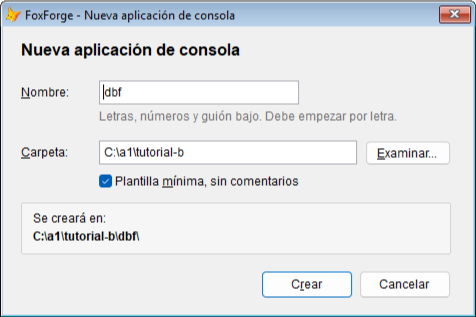
Press Create. FoxForge creates the project and opens it in the Project Manager:
dbf\
├── dbf.pjx          the VFP project
├── foxforge.json    marks it as a CLI project
├── pack.ps1         packs what you hand out
├── src\
│   ├── main.prg     your commands: the only file you edit
│   ├── foxcli.h     named exit codes
│   └── foxcli.prg   the base class, which belongs to FoxCli
└── dist\            the .exe lands here when you build
Step 3. What the template brings
Open src\main.prg:
#INCLUDE foxcli.h

*!* dbf: describe aquí lo que hace tu CLI
DEFINE CLASS DbfCommand AS FoxCliCommand OF foxcli.prg OLEPUBLIC

    *!* Saluda a alguien
    *!* @tcNombre  -n  A quién saludar
    PROCEDURE Saludar(tcNombre AS String)
        Console.WriteLine("Hola " + tcNombre + "!")
    ENDPROC

ENDDEFINE
That is enough to see how it all works:
- Every public method of the class is a command.
Saludar(“greet”) is used asdbf saludar. - Every parameter is an option, named without its prefix:
tcNombreis--nombre. The type comes from theAS. - The
*!*block above it is the documentation. The first line is the command’s description, and each@line annotates a parameter:-ngives it a short alias and the rest is its description. The help comes from there. Consoleis the console.Console.WriteLine()writes to the output andConsole.Error()to the error channel.
Step 4. Write the commands
Replace the contents of main.prg with this:
#INCLUDE foxcli.h

*!* dbf: mira y exporta tablas de VFP desde la consola, sin abrir Visual FoxPro
*!* @exit 10 La tabla no existe
DEFINE CLASS DbfCommand AS FoxCliCommand OF foxcli.prg OLEPUBLIC

	*!* Cuántos registros y campos tiene una tabla
	*!* @tcTabla <>  La tabla (.dbf)
	*!* @example dbf info customers.dbf
	PROCEDURE Info(tcTabla AS String)
		IF !THIS.Abrir(tcTabla)
			RETURN EXIT_NO_TABLE
		ENDIF
		Console.WriteLine("Registros:  " + TRANSFORM(RECCOUNT()))
		Console.WriteLine("Campos:     " + TRANSFORM(FCOUNT()))
		Console.Write("Modificada: ")
		Console.WriteLine(LUPDATE())
		USE
	ENDPROC

	*!* La estructura de una tabla: nombre, tipo y ancho de cada campo
	*!* @tcTabla <>  La tabla (.dbf)
	*!* @example dbf campos customers.dbf --format json
	PROCEDURE Campos(tcTabla AS String)
		LOCAL laCampos[1], lnCampos, lnI, lcJson
		IF !THIS.Abrir(tcTabla)
			RETURN EXIT_NO_TABLE
		ENDIF
		lnCampos = AFIELDS(laCampos)
		USE
		IF Console.IsJson()
			lcJson = ""
			FOR lnI = 1 TO lnCampos
				lcJson = lcJson + IIF(lnI > 1, ",", "") + ;
					'{"nombre":"' + LOWER(laCampos[lnI, 1]) + '","tipo":"' + laCampos[lnI, 2] + ;
					'","ancho":' + TRANSFORM(laCampos[lnI, 3]) + '}'
			ENDFOR
			Console.WriteLine("[" + lcJson + "]")
		ELSE
			FOR lnI = 1 TO lnCampos
				Console.WriteLine(PADR(LOWER(laCampos[lnI, 1]), 14) + laCampos[lnI, 2] + ;
					STR(laCampos[lnI, 3], 5))
			ENDFOR
		ENDIF
	ENDPROC

	*!* Copia una tabla a un fichero CSV o XLS
	*!* @tcTabla   <>             La tabla (.dbf)
	*!* @tcDestino <>             El fichero que se crea
	*!* @tcFormato :csv|xls =csv  Formato del fichero
	*!* @example dbf exportar customers.dbf clientes.csv
	*!* @example dbf exportar customers.dbf clientes.xls --formato xls
	PROCEDURE Exportar(tcTabla AS String, tcDestino AS String, tcFormato AS String)
		IF !THIS.Abrir(tcTabla)
			RETURN EXIT_NO_TABLE
		ENDIF
		IF tcFormato == "xls"
			COPY TO (tcDestino) TYPE XL5
		ELSE
			COPY TO (tcDestino) TYPE CSV
		ENDIF
		Console.Error(TRANSFORM(RECCOUNT()) + " registros copiados a " + tcDestino)
		USE
	ENDPROC

	*-- Abre la tabla solo para leer. Si no existe, lo dice por el canal de error.
	PROTECTED FUNCTION Abrir(tcTabla)
		IF !FILE(FORCEEXT(tcTabla, "dbf"))
			Console.Error("dbf: no encuentro la tabla " + tcTabla)
			RETURN .F.
		ENDIF
		USE (FORCEEXT(tcTabla, "dbf")) AGAIN SHARED NOUPDATE ALIAS tabla
		RETURN .T.
	ENDFUNC

ENDDEFINE
And add your own exit code at the end of src\foxcli.h:
#DEFINE EXIT_NO_TABLE 10 && la tabla no existeWhat to look at in that code:
<>makes a positional.@tcTabla <>says the table is written with no name in front:dbf info customers.dbf, and notdbf info --tabla customers.dbf.:csv|xls =csvis a closed list with a default value.--formatoonly acceptscsvorxls, and if it is not given it iscsv. FoxCli validates it before your code is reached.- What the method returns is the exit code. With no
RETURN, the command ends with 0.RETURN EXIT_NO_TABLEends with 10, and the@exit 10above documents it. Yours go from 10 to 125: the low numbers belong to FoxCli. Console.IsJson()tells you whether the caller asked for--format json. You do not declare that option: FoxCli brings it in every command.- The result goes to the output and messages to the error channel.
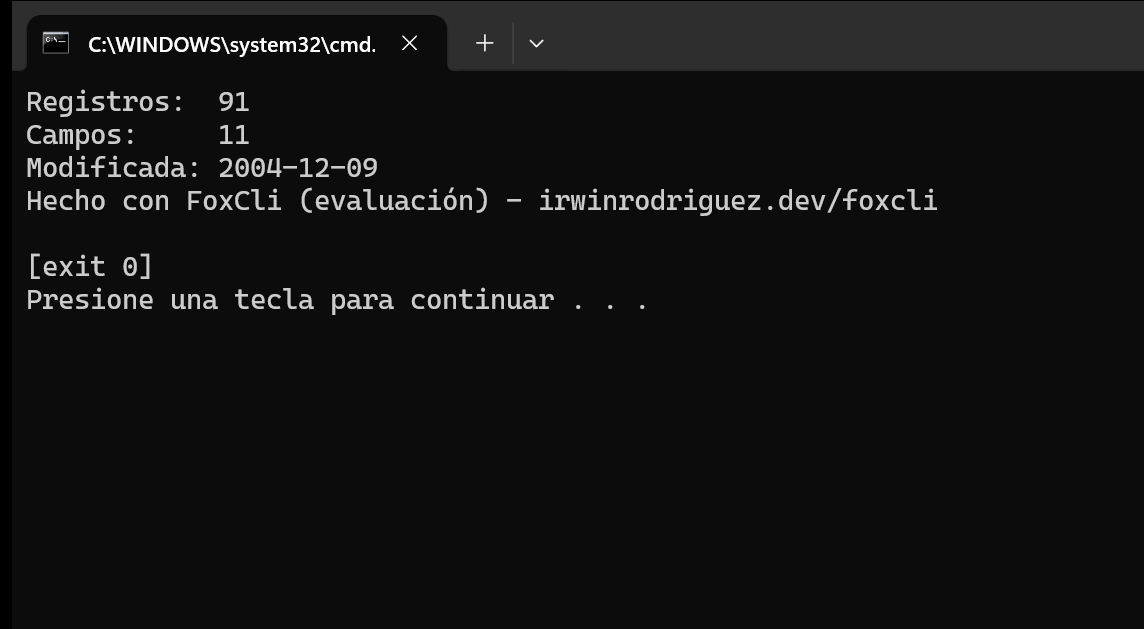
exportarreports how many records it copied withConsole.Error(), so if someone redirects its output to a file, the message does not get mixed in. Abrir(“open”) isPROTECTED: a helper method like any other, which does not show up in the list of commands. That is why its comment uses the usual*--:*!*is for what appears in the CLI’s help, and a helper method is never called from the console.Console.WriteLine(LUPDATE())writes the date in ISO format (2004-12-09) on any machine, without depending onSET DATE. A CLI’s output is read by other programs, and it has to be the same everywhere.
Step 5. Build
FoxForge > Current project > Build CLI, or Ctrl+F7. Without a FoxCli license, this notice appears:
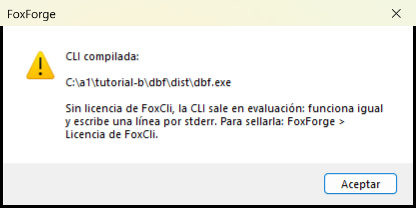
You now have dist\dbf.exe. Along the way, FoxForge has generated the documentation in docs\dbf.md, with each command’s description taken from the *!* blocks.
Step 6. Try it from the IDE
Before opening a console, you can try it without leaving VFP. FoxForge > Current project > Arguments…, or Shift+F8, and type the line as you would in a console, without the program’s name:
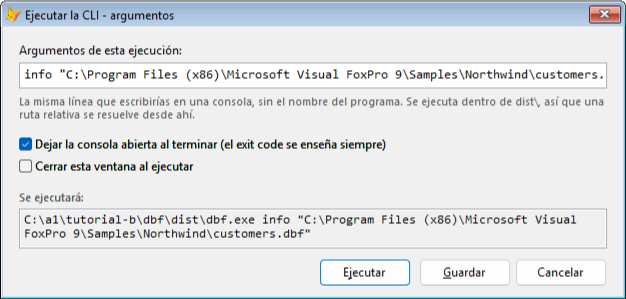
It runs inside dist\, so the full path of the table goes here. Run (or Ctrl+F8 next time, since it remembers the arguments) opens a console with the result, and the exit code underneath:
If something fails, FoxForge > Current project > Test bench runs a command from your source, with the VFP debugger at hand and without building.
Step 7. Hand it out and use it from the console
In the project folder, pack.ps1 builds a zip with what is needed to run the CLI and nothing else. From a console in that folder:
powershell -ExecutionPolicy Bypass -File pack.ps19 ficheros -> C:\a1\tutorial-b\dbf\dbf-dist.zip (3.634.677 bytes)
Se despliega descomprimiendo: no hace falta registrar nada ni ser administrador.Those 9 files are your CLI and the VFP 9 runtime, so it works on a machine without Visual FoxPro. Unzip them wherever you like (I use a tools folder) and it is installed. Nothing gets registered, so there is nothing to uninstall either: you delete the folder.
To leave the VFP folder alone, copy the Northwind data to your test folder. Careful: the whole folder, because customers.dbf belongs to the northwind.dbc database:

Go into the copy and add dbf’s folder to that console’s PATH, so you can type dbf without its path:
cd C:\pruebas-cli\northwind
set PATH=%PATH%;C:\herramientas\dbf
(Change C:\herramientas\dbf to the folder where you unzipped it. That set only holds for that window.)
You wrote the help without noticing, in the *!* blocks:
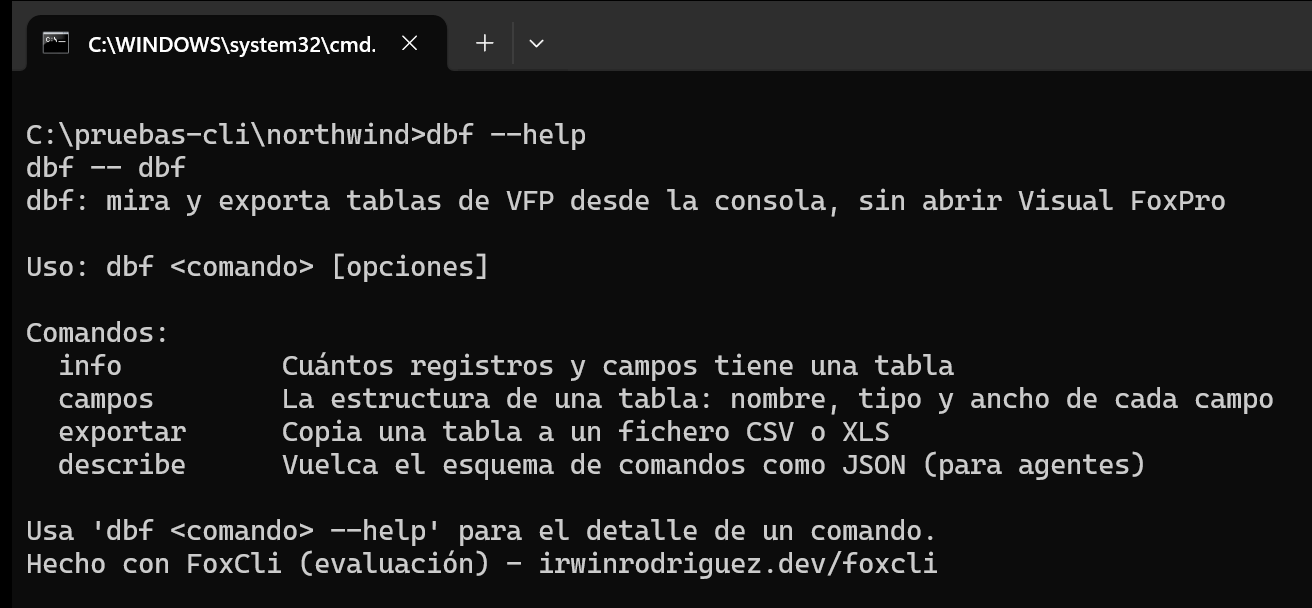
describe also comes with FoxCli: it dumps every command with its options as JSON, so an AI agent can discover the CLI without reading anything else.
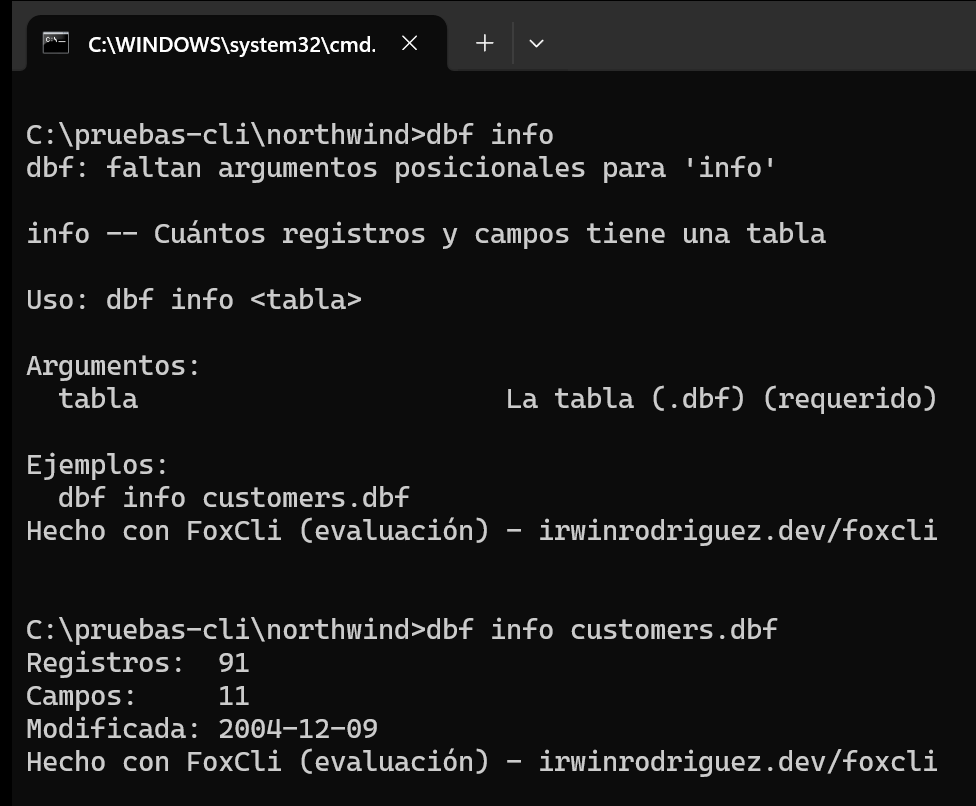
If an argument is missing, dbf never reaches your code: it says what is missing, shows the command’s help and exits with 2. With the table, it gives the result:
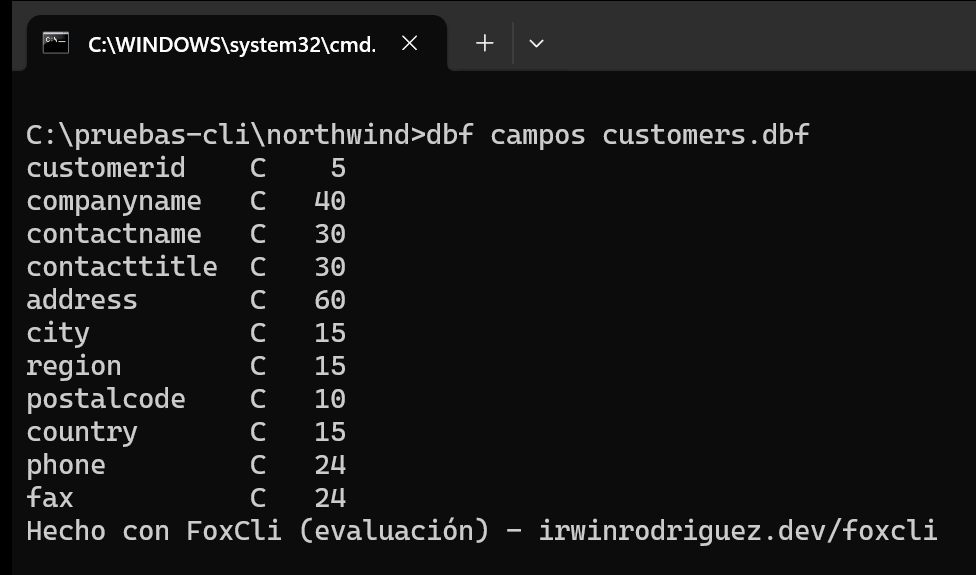
campos shows the structure as a table you read on screen:
And with --format json, as one line another program can read:
dbf campos customers.dbf --format json[{"nombre":"customerid","tipo":"C","ancho":5},{"nombre":"companyname","tipo":"C","ancho":40},{"nombre":"contactname","tipo":"C","ancho":30},...,{"nombre":"fax","tipo":"C","ancho":24}]exportar leaves the file and reports on the error channel. With a table that does not exist, it exits with the 10 we declared:
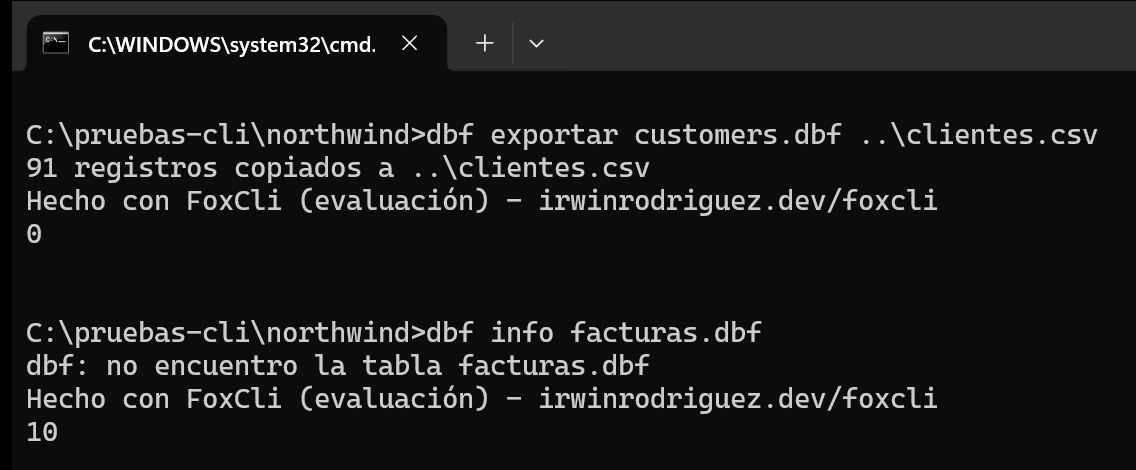
The CSV keeps its accented letters (Avda. de la Constitución 2222, México D.F.), because VFP writes it with the table’s code page.
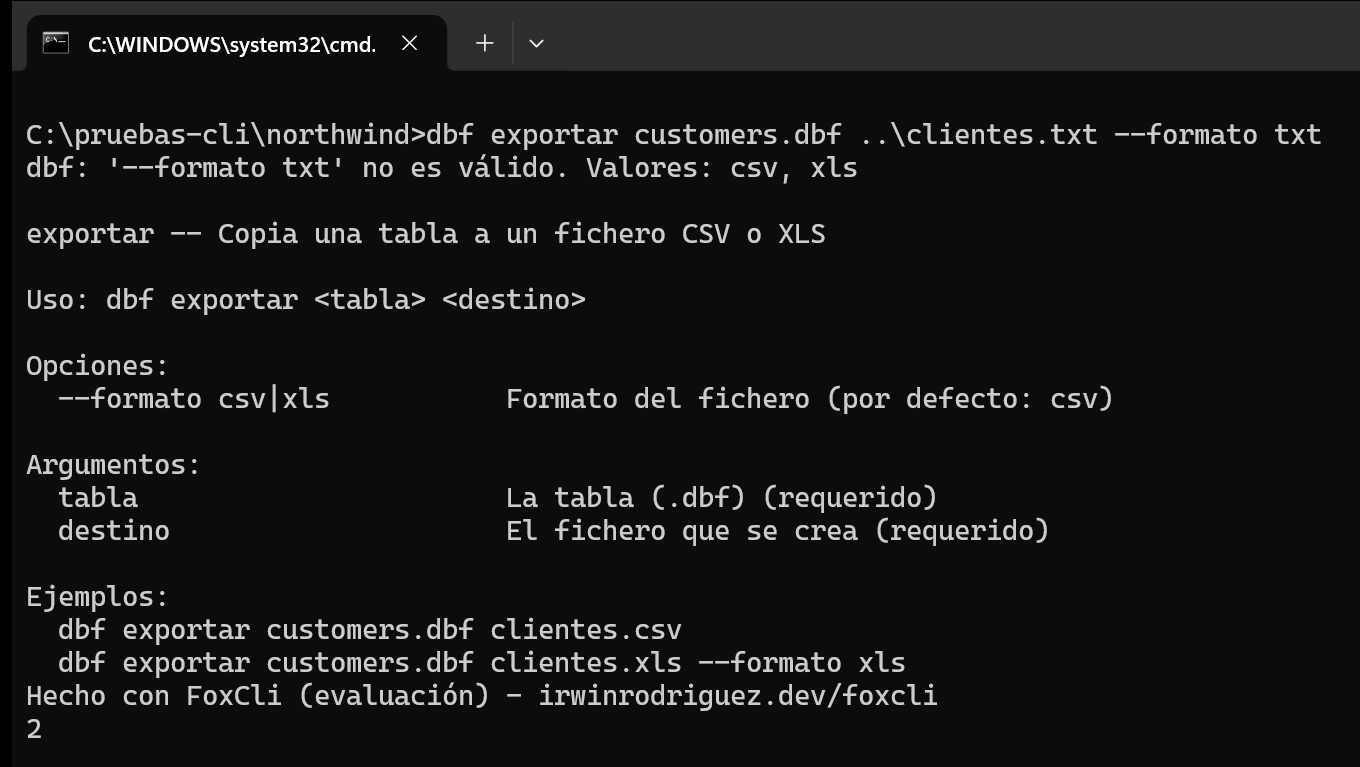
And a format that is not on the list never reaches your code: FoxCli says which ones are valid, shows the help of exportar and exits with 2.
A table away from its database. If you copy only customers.dbf to another folder, without northwind.dbc, VFP will try to ask you where the database is. In a CLI there is nobody to ask, so dbf exits with code 1 and VFP’s error on the error channel (“User-interface operation not allowed at this time”, error 2031). It does not hang waiting for an answer: FoxCli never leaves a dialog open.
Step 8. The license
Without a license, the CLI works the same and never expires. The only difference is the line you have seen at the end of every output (on mine, in Spanish):
Hecho con FoxCli (evaluación) - irwinrodriguez.dev/foxcliIt goes to the error channel, so it does not end up in a CSV or a JSON even if you redirect the output. With a FoxCli license loaded in FoxForge > FoxCli license…, Ctrl+F7 seals the CLI with your name: the line disappears, and --version says who it is licensed to.
dbf --versiondbf (FoxCli 1.3.0, con licencia de Irwin Rodríguez)You hand out the CLIs you build for free and to whoever you like: the license belongs to the developer who builds, not to each copy.
What next
- The FoxCli guide is in FoxForge > Help > FoxCli guide: reading input, dates, the output format, the
HELPclause and everything that did not come up today. - Your CLI’s documentation is in
docs\dbf.md, and it is regenerated on every build: it works as a README as it is. - A big example: FoxPack, the library manager for VFP projects, is a CLI built with FoxCli, and its source code is published.
- Ideas to keep going with
dbf: acontar(“count”) command with a filter (--donde "country = 'Spain'"), or lettingexportartake--camposto choose the columns.