Almost everything a Fox developer has built has windows: forms, Grids, buttons, reports. The console, that black window where you type commands, is left to the sysadmin or to whoever comes from Linux. And yet more and more things can only be done from there: git, task schedulers, servers without a desktop and, lately, AI agents, which work by running commands and reading what comes back.
There are thousands of command-line tutorials, but they are written by people who have never opened a .pjx. This course goes the other way round: it starts from what you already know about VFP and uses it as a bridge. Five short parts:
- What a CLI is (this one).
- Anatomy of a command: commands, arguments, options and positionals.
- Input, output and error, and the exit code.
- Reading and writing help.
- Using CLIs from VFP, properly.
Everything here was run on a Windows 11 set to Spanish, so the messages you will see in the examples are in Spanish. On yours they will be in your language, but the commands are the same.
You have already used a command line
Open Visual FoxPro. The window titled Command is a command line: you type a command, press Enter and the result comes out.
? DATE()
? VERSION()
DIR *.prg
No buttons, no menus. You type text, VFP interprets it, does something and answers with more text. A CLI (command-line interface) is the same thing outside VFP: a program you drive by typing commands instead of clicking on windows.
The first command in the Windows console
Press Windows + R, type cmd and press Enter. A window opens with something like C:\Users\yourname> and a blinking cursor. That text is the prompt: it tells you which folder you are in and that it is waiting for a command, like the cursor in the VFP Command window.
Type this and press Enter:
ping -n 2 127.0.0.1You should see something like this (mine is in Spanish):
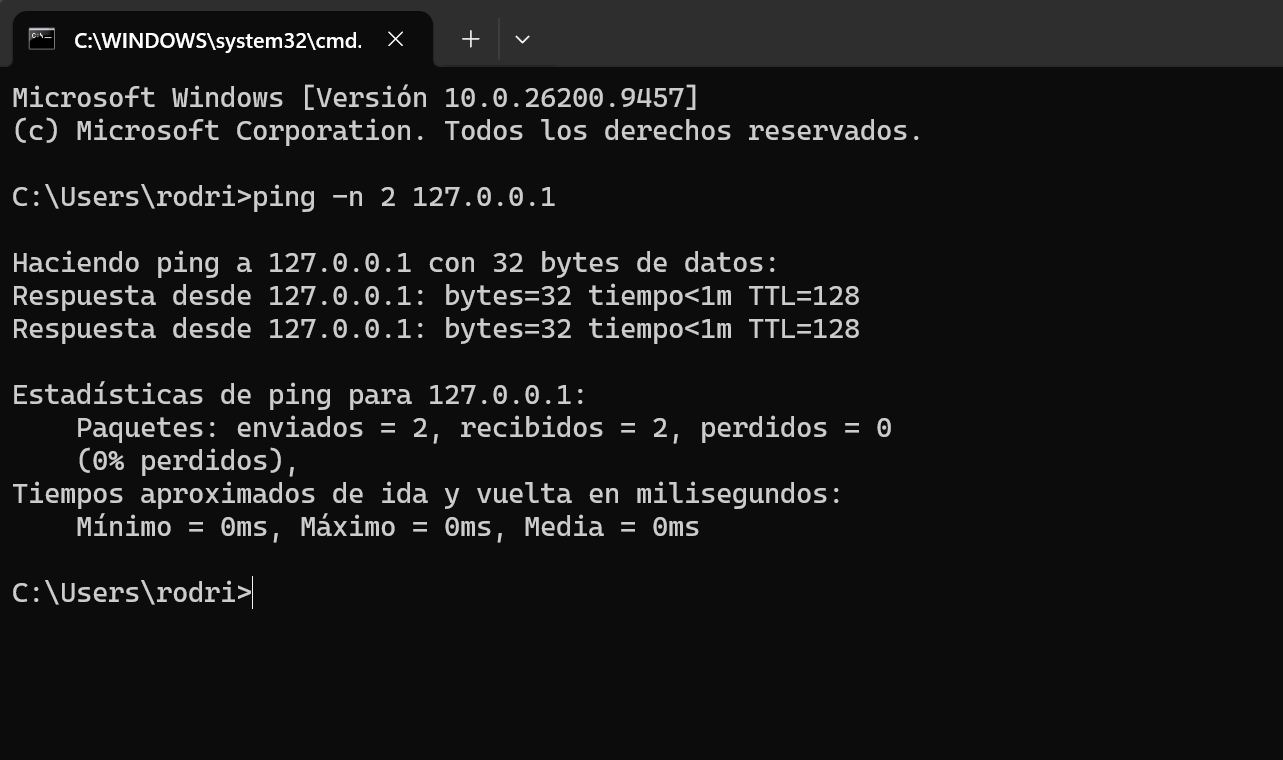
ping checks whether another machine answers over the network. 127.0.0.1 is your own computer, so it always answers, and -n 2 tells it to try twice instead of the four times it does by default. What each piece of that command is, we see in part 2.
Try ver (the Windows version) and dir (the files in the folder) too. The console’s dir and VFP’s DIR are very much alike: both list files and both accept wildcards like *.prg.
Console, terminal and shell
These three words get used as synonyms, and it pays to tell them apart from the start, because you will read them everywhere.
The shell is the program that reads what you type and runs it. Windows has two:
cmd.exe, the old one, heir to MS-DOS’sCOMMAND.COM. It is the one you opened with Windows + R.- PowerShell, more modern. The one that ships with Windows is 5.1; mine says
5.1.26100. There is a version 7 that is installed separately and is calledpwsh.
Both understand simple commands like ping or dir, but each has its own language for everything else: variables, loops, quotes. In this course I use both and always say which.
The console, or terminal, is the window where you type and read. In Windows 11 that window is, by default, the Terminal app (wt.exe), which has tabs and can open a cmd, a PowerShell or another shell in each one. The window only draws text and collects keystrokes; the one that understands the commands is the shell running inside it.
The program you run is something else again. ping is an ordinary file:
where pingC:\Windows\System32\PING.EXEAn .exe like the one you get when you build a VFP project. In that folder of my Windows there are 663 .exe files, and 270 of them are console programs like this one.
In VFP terms: the Command window is the terminal, the VFP engine that interprets ? DATE() is the shell, and DATE() is what you run. The difference is that in the Windows console almost everything you run is a separate .exe, and each one does one thing.
You already launch console programs from VFP
RUN (and its short form !) has been in FoxPro since the DOS days. It launches a command as if you had typed it in cmd:
RUN ver > version.txt
? FILETOSTR("version.txt")
It works, and it already holds two ideas of the course: RUN launches a console program, and > sends what that program writes to a file instead of the screen. There are three things about RUN you need to know:
RUNwaits for the program to finish. Aping -n 4took 4.03 seconds, and VFP sat frozen the whole time.RUN /Ndoes not wait. The same command came back in 0.04 seconds, andpingcarried on by itself.- With
/N, the>does nothing.RUN /N ping -n 1 127.0.0.1 > output.txtdoes not create the file. Without/N, the command goes throughcmd.exe(the shell named in theCOMSPECvariable), which is what understands>. With/N, that redirection does not happen.
And a detail you will see as soon as you read that version.txt from VFP on a Windows with accented messages: mine says Versi¢n instead of Versión. The Windows console writes with a different code page from VFP (850 against 1252 on mine), and accented letters come out changed. On an English Windows ver has no accents, but any accented text (a customer’s name, a file name) goes through the same thing. It can be fixed, and we see how in part 3.
Part 5 is all about this: launching console programs from VFP, waiting or not, collecting what they write and knowing whether they went well.
Why they are still alive
CLIs date from the seventies and are still everywhere because they do things a window cannot:
- They can be automated. A command is text, and text can be saved in a
.bat, scheduled in the Windows Task Scheduler to run at three in the morning, or launched from another program. A form needs someone in front of it to press the button. - They can be chained. The output of one program can be the input of the next, and big jobs are built from small pieces. That is what the
>above does, and there is more (part 3). - They work without a desktop. A server you connect to remotely, a process running as a service, a virtual machine in the cloud: there is not always anyone looking at a screen there, and the console is what you have.
Who uses them today
You, even if you did not know it, every time your application does a RUN. Also:
- Scripts: the
.batand.ps1files someone wrote to copy the backups, deploy a version or clean temporary files. - The Task Scheduler: every scheduled task is a program plus its arguments, in other words, a command line.
- Developer tools: git, compilers, silent installers. Almost all of them have a CLI, and many have nothing else.
- AI agents, the newest arrival. An agent that programs with you works by running commands in a console and reading what they return. If your tool has a CLI that writes its result in a readable format (JSON, for example), an agent can use it without anyone programming anything for it.
Practice
Open a cmd with Windows + R and try these commands. None of them changes anything on your computer:
ver
dir C:\Windows\System32\*.exe
where notepad
ping -n 2 127.0.0.1
hostname
Then, in the VFP Command window:
RUN hostname > computer.txt
? FILETOSTR("computer.txt")
And notice one thing for the next part: in dir C:\Windows\System32\*.exe, which part is the program and which part is what you tell it to do? That is what part 2, the anatomy of a command, is about.