I ran a survey in the FoxPro community, on Patreon and in the WhatsApp group, with a single question: what is the hardest thing about your VFP application today. Two out of three answered the same: exposing it on the web or as an API. Getting the data and the logic they already have into something a browser, a mobile app or another company’s program can call.
This tutorial is the answer to that question, done from the Visual FoxPro IDE, the one you have always used. When you finish you will have a REST API that returns a DBF table as JSON and accepts inserts. The code is plain VFP 9, and you do not touch the application you already have: you publish it.
I start from zero: Visual FoxPro closed. Every step says what to click, what to type and what you should see on screen. If at any point what you see does not look like the screenshot, stop there: right below I explain why it happens and how to fix it.
More at home on the command line? There is the same tutorial in a CLI version: same project, same result, with commands you paste into PowerShell.
What you need before you start
- Visual FoxPro 9 SP2 installed. FoxServer compiles your project with it.
- FoxServer installed. The 30-day trial license issued when you register on the portal is enough for everything here. The installer asked you for the license file at the end: if you skipped it, run it again.
- A web browser, whichever you use: Edge, Chrome or Firefox.
- Permission to run programs as administrator on your machine. It is only needed to compile, and in step 1 I tell you why.
Nothing else. You do not need to open any console or install anything extra.
The three things to understand before writing a line
If you only read one box in this article, make it this one.
1. Your code stays yours. It only gets published. FoxServer translates nothing and imposes no framework. A PROCEDURE of a VFP class becomes an endpoint (a web address that answers, like http://127.0.0.1:8099/hola) just by adding a HELP clause:
PROCEDURE pHola(req, res) HELP "GET: hola public"
    LOCAL loRes
    loRes         = THIS.newObject("mensaje")
    loRes.mensaje = "hola"
    RETURN THIS.Ok(loRes)
ENDPROC
That is an API. The rest of the article is detail.
2. The route does not exist until you compile. The route is born in that HELP clause, and it only reaches the server when the project is compiled. It is the number one cause of “I added the endpoint and I get a 404”. If you add a route and it does not show up: you have not compiled.
3. The call is synchronous. An endpoint that takes two seconds takes two seconds, and it holds its slot in the meantime. For queries that is convenient; for a forty-second process you return an identifier and do the work elsewhere.
Step 1. Open Visual FoxPro as administrator and load FoxForge
FoxForge is the workshop FoxServer installs for the Visual FoxPro IDE: one more menu in the bar, next to File, Edit and the rest, from which you create projects. It loads like any .app, with a DO.
- Find the Visual FoxPro 9 icon you always use: on the desktop, on the taskbar or in the Start menu.
- Right-click it and choose Run as administrator. Where the option is depends on where your icon is:
- On the desktop, it is right there in the right-click menu.
- On the taskbar, the first right-click only shows
vfp9.exe: right-clickvfp9.exeagain and there it is, as in the image. - In the Windows 11 Start menu (Start › All apps), it is under More.
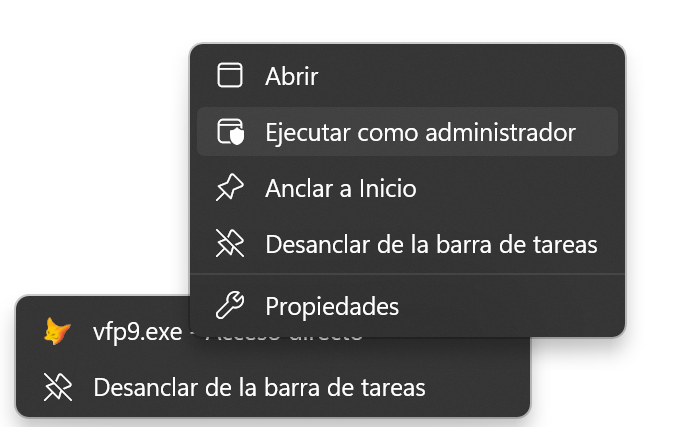
Depending on how your Windows is configured, before it opens it may ask whether you want to allow the app to make changes to your device. That is User Account Control: if it shows up, answer Yes. If nothing shows up and the IDE opens directly, that is fine too: your Windows is configured not to ask.
Why as administrator? Your project is compiled as a multi-threaded COM DLL, the same one you would get with BUILD MTDLL. When it finishes compiling, Visual FoxPro registers it in Windows, and only an administrator is allowed to do that. Without permissions, the build looks like it finishes but leaves a half-made DLL the server cannot use. Nothing else needs administrator: only compiling.
- With Visual FoxPro open, go to the Command Window. If you do not have it in view: menu Window › Command Window, or Ctrl+F2.
- Type these two lines, pressing Enter after each one:
CD "C:\Program Files (x86)\FoxServer\ide"
DO FoxForge.app
The quotes in the CD are needed because the path has spaces. If you installed FoxServer in another folder, change the path to yours: it is the ide\ folder of the installation.
In a second a new menu appears at the end of the bar: FoxForge.
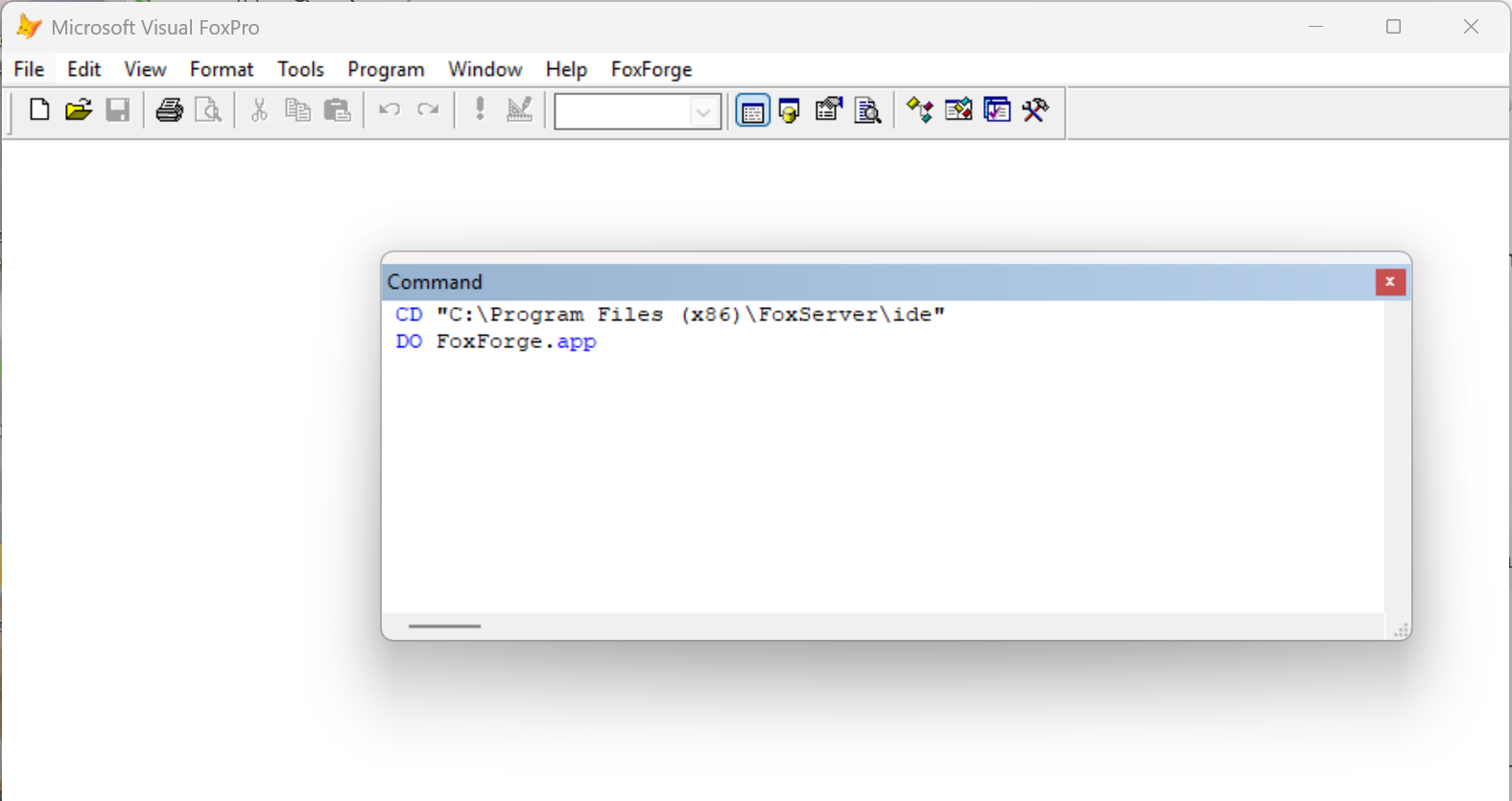
If you would rather not type anything, the FoxServer installer leaves a shortcut in the Start menu, inside the FoxServer folder, called Crear un proyecto (FoxForge), that opens Visual FoxPro with the menu already loaded. Open it with right-click › Run as administrator too.
Since 0.9.30, opening a FoxServer project loads FoxForge by itself, if FoxServer is installed on the machine and the project was created or updated with that version. To have it before opening any project, use those two lines; if you want it every time, put them in your Visual FoxPro startup program. It works the same in Visual FoxPro 9 and in VFP Advanced (VFPA).
Step 2. FoxForge in English
FoxForge speaks English and Spanish and picks one from your Windows the first time. Check that FoxForge › Language has English marked, as in the screenshot. If the menus appear in Spanish, open FoxForge › Idioma › Inglés. FoxForge remembers your choice for next time.
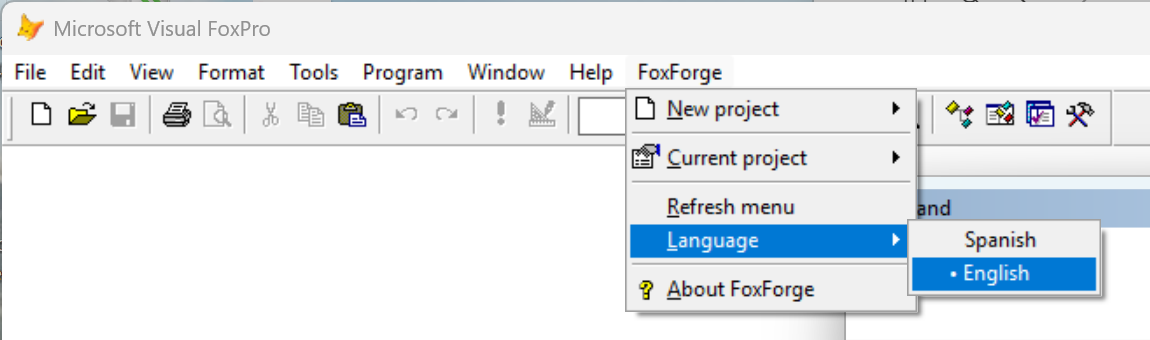
From here on I name the FoxForge menus in English, the way they appear. The Visual FoxPro ones are in English anyway.
Step 3. Your projects folder
We are going to save the project in C:\proyectos. The names in this tutorial stay in Spanish because that is what the screenshots show: proyectos is projects, Almacen is warehouse and articulos is items. The wizard in the next step needs the folder to already exist, so we create it now.
Open the Visual FoxPro Command Window, if you do not have it in view: menu Window › Command Window, or Ctrl+F2. Type this line and press Enter:
MD C:\proyectosIf it answers that the folder already exists, no problem: carry on.
Another folder? The project can go wherever you want, your Documents too. Here we use
C:\proyectosbecause it is short, and the paths in the next steps read better.
Step 4. Create the project
- Open the menu FoxForge › New project › Web service / REST API (FoxServer).
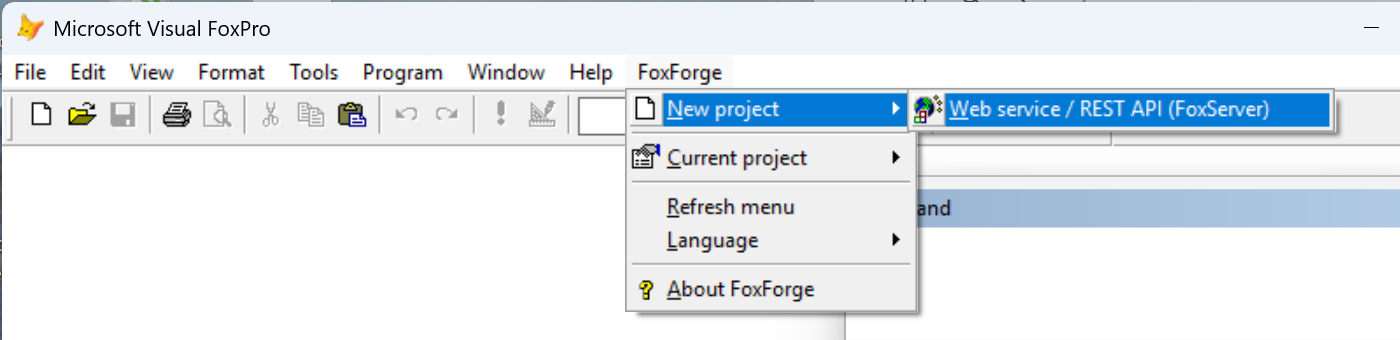
- The New FoxServer project window opens. Fill it in like this:
| Field | What to type |
|---|---|
| What is it called | Almacen. It is the name of the DLL, so it does not accept accents, spaces or symbols: if you type «Almacén», the wizard turns it into Almacen and warns you with “No accents, spaces or symbols in the name. Changed or removed:“ |
| Port | 8099 |
| Where do I create it | C:\proyectos\ |
| What it is going to be | Leave the first one selected, REST API — the usual |
| Require a token to use the API (JWT) | Leave it unchecked |
The port is the “counter number” your API will serve at: 8099 is one that is almost never taken.
As you fill it in, the box below tells you what is going to happen. It should say this:
Will be created in: C:\proyectos\Almacen\
Will answer at : http://127.0.0.1:8099/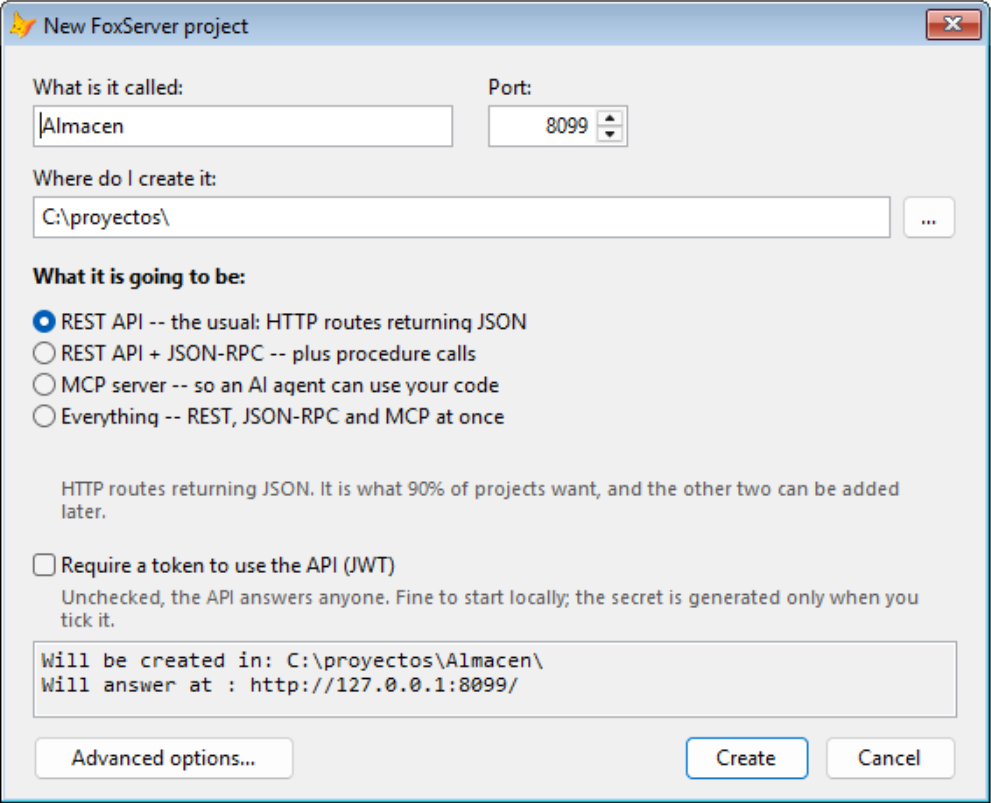
127.0.0.1 is your own machine (localhost): while you develop, the API only answers from your machine.
If the Create button stays gray, read the box: it tells you what is missing. If it says the folder does not exist, you skipped step 3.
- Click Create.
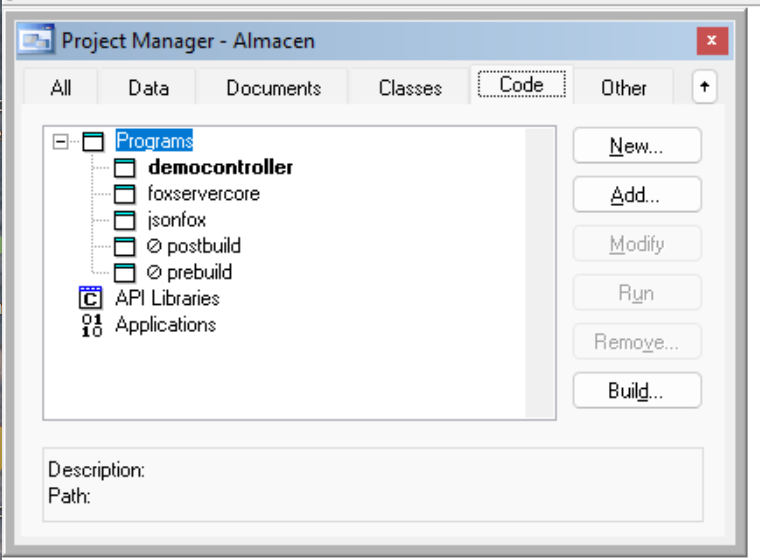
Visual FoxPro works for a few seconds and opens the Project Manager of the Almacen project, like any other project of yours.
This is what it has left in C:\proyectos\Almacen\. It is the output of tree /f, a Windows command that draws a folder with everything inside it; you can see it yourself from a Command Prompt window:
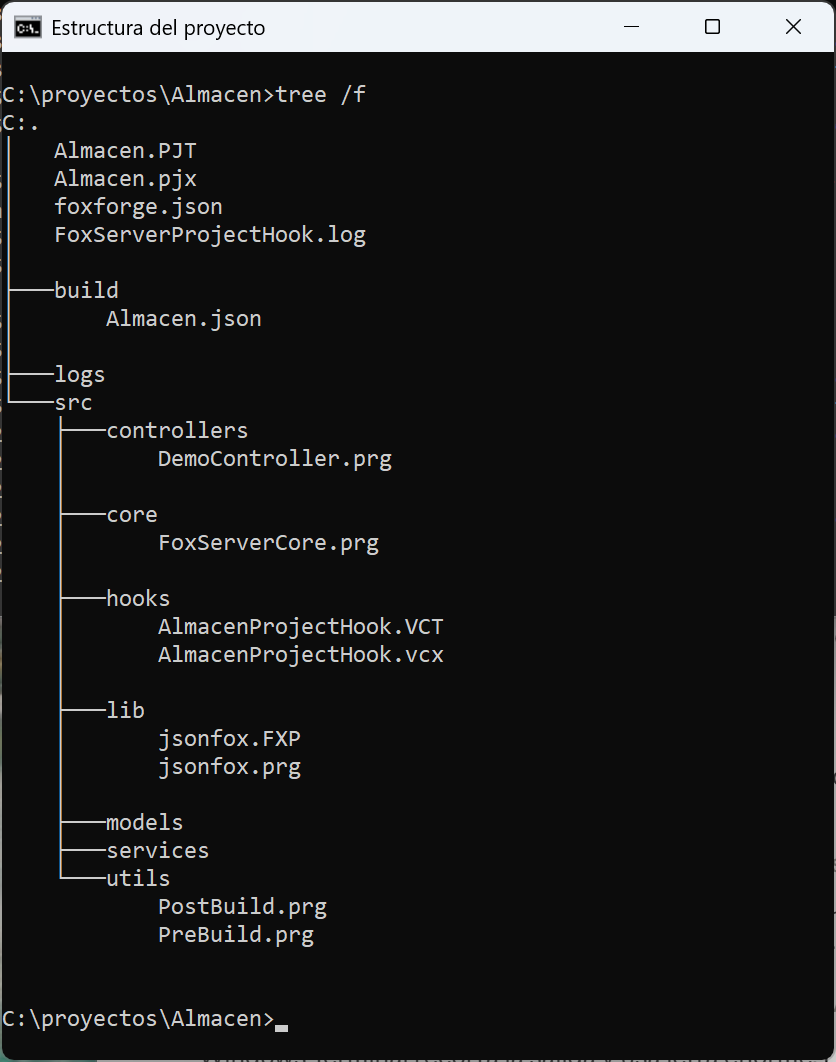
| Folder or file | What it is |
|---|---|
Almacen.pjx | Your project, the usual one |
build\ | The DLL will come out here, and here lives Almacen.json, the server configuration: port, security, logs |
logs\ | The server logs, one per day. Empty until you start it |
src\controllers\ | Your classes with endpoints go here |
src\core\ and src\lib\ | The FoxServer engine and the JSON library. Do not touch them |
src\hooks\ | The class that runs when you compile and records your routes |
src\utils\ | PreBuild.prg and PostBuild.prg, in case you want to do something before or after compiling |
Inside src\controllers\ there is a DemoController.prg with seven sample endpoints (hello, users, search…). FoxForge puts it there so the project serves something from the first minute. It is not yours: when you finish this tutorial, remove it from the project and compile again, and its routes disappear.
Step 5. The Articulos controller
A controller is a VFP class with endpoints inside. We are going to create one for the warehouse items.
- In the Project Manager, open the Code tab, select Programs and click New….
- An empty program editor opens. Paste this whole code into it:
*-- Articulos.prg: the tutorial controller.
*-- Every PROCEDURE with its HELP clause is an endpoint.
DEFINE CLASS Articulos AS ApiController OLEPUBLIC

    *-- Runs BEFORE every request: opens the table.
    FUNCTION BeforeEndpoint(req, res)
        SET DELETED ON
        SET EXCLUSIVE OFF
        USE articulos IN 0 SHARED AGAIN
    ENDFUNC

    *-- Runs AFTER every request: closes everything.
    PROCEDURE AfterEndpoint(req, res)
        CLOSE DATABASES ALL
    ENDPROC

    *-- GET /articulos: the whole table as JSON.
    PROCEDURE pArticulos(req, res) HELP "GET: articulos public as articulos.lista"
        LOCAL lcJson

        SELECT codigo, descripcion, precio, stock ;
            FROM articulos ;
            WHERE activo ;
            ORDER BY descripcion ;
            INTO CURSOR art

        lcJson = THIS.TableToJson("art")
        USE IN SELECT("art")

        RETURN THIS.OkRaw(lcJson)
    ENDPROC

    *-- GET /articulos/A001: one item by its code.
    PROCEDURE pArticulo(req, res) HELP "GET: articulos/{codigo} public as articulos.uno"
        LOCAL lcCodigo, loArt

        lcCodigo = req.GetParam("codigo", "")
        IF EMPTY(lcCodigo)
            RETURN THIS.BadRequest("Falta el código del artículo")
        ENDIF

        SELECT articulos
        LOCATE FOR ALLTRIM(articulos.codigo) == ALLTRIM(lcCodigo)
        IF !FOUND()
            RETURN THIS.NotFound("No existe el artículo " + lcCodigo)
        ENDIF

        loArt = THIS.NewObject("codigo,descripcion,precio,stock")
        loArt.codigo      = ALLTRIM(articulos.codigo)
        loArt.descripcion = ALLTRIM(articulos.descripcion)
        loArt.precio      = articulos.precio
        loArt.stock       = articulos.stock

        RETURN THIS.Ok(loArt)
    ENDPROC

    *-- POST /articulos: insert a new item.
    PROCEDURE pAlta(req, res) HELP "POST: articulos public as articulos.alta"
        LOCAL loDatos, loNuevo, lcDesc

        loDatos = req.json
        IF ISNULL(loDatos) OR VARTYPE(loDatos) != "O"
            RETURN THIS.BadRequest("El cuerpo tiene que ser un objeto JSON", "cuerpo_invalido")
        ENDIF

        lcDesc = ""
        TRY
            lcDesc = ALLTRIM(TRANSFORM(loDatos.descripcion))
        CATCH
            lcDesc = ""
        ENDTRY

        IF EMPTY(lcDesc)
            RETURN THIS.BadRequest("Falta la descripción", "falta_descripcion")
        ENDIF

        loNuevo = THIS.NewObject("codigo,descripcion")
        loNuevo.codigo      = THIS.NewGuid()
        loNuevo.descripcion = lcDesc

        INSERT INTO articulos (codigo, descripcion, activo) ;
            VALUES (loNuevo.codigo, loNuevo.descripcion, .T.)

        RETURN THIS.Created(loNuevo)
    ENDPROC

ENDDEFINE
The field names (codigo is code, descripcion description, precio price, activo active) and the error messages inside the strings stay in Spanish too, for the same reason: they are what you will see in the responses.
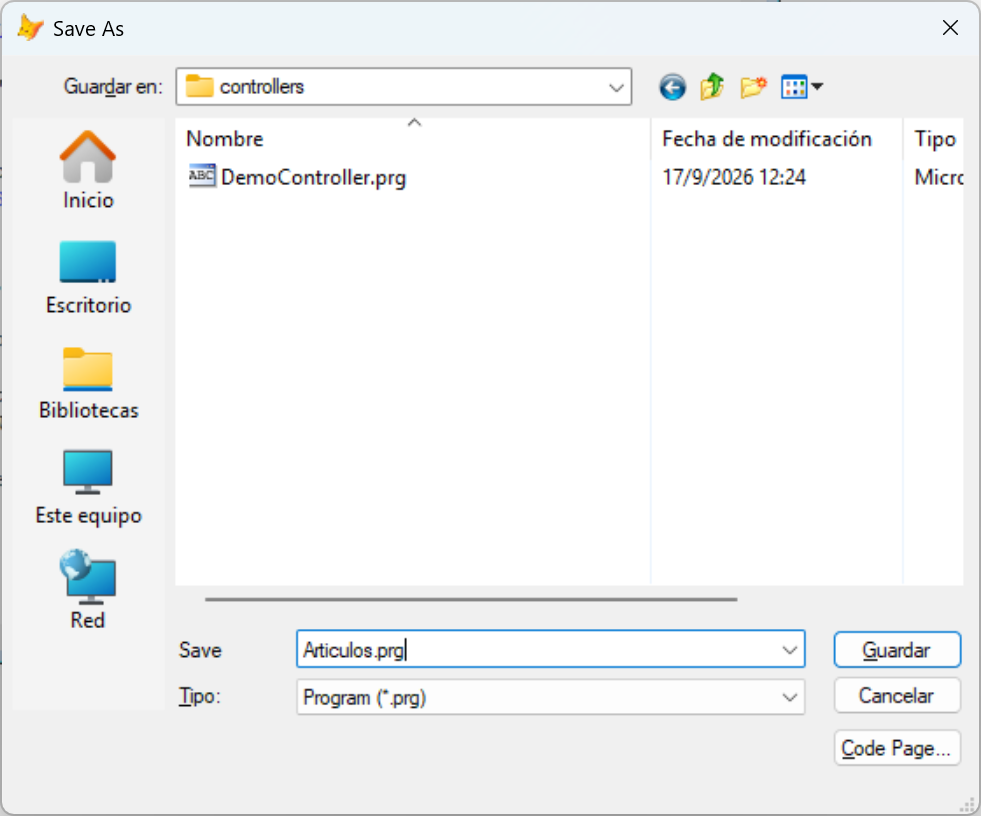
- Save it with File › Save (or Ctrl+S). It will ask where, and watch out: the dialog does not open in the project folder but in the last one Visual FoxPro was in: FoxServer’s
ide\, if you did theCDfrom step 1. The quickest way to get there: typeC:\proyectos\Almacen\src\controllersin the file name box and press Enter, which takes you into that folder. Then typeArticulos.prgand click Save.
- Close the editor. In the Project Manager, under Code › Programs,
articulosshould appear.
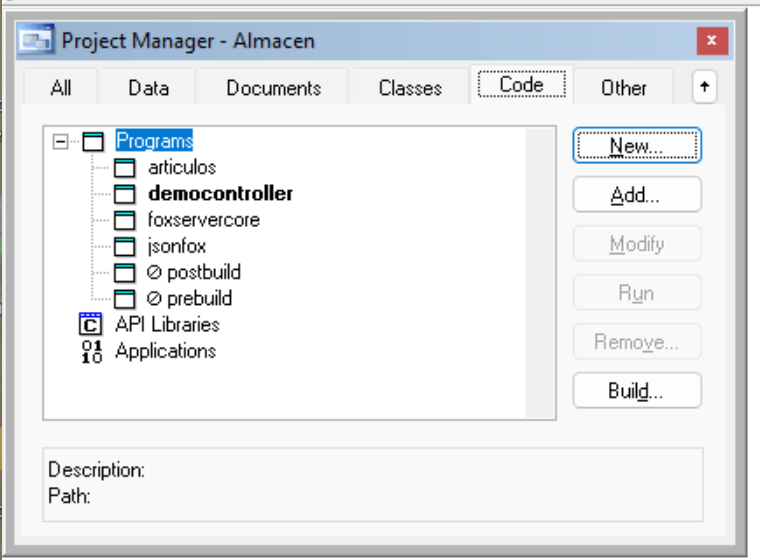
If it does not appear in the list, the file was saved but did not end up inside the project, and for the server it does not exist. Select Programs, click Add… and choose
src\controllers\Articulos.prg.
What each part does
Read it calmly, it is the VFP you have always written:
DEFINE CLASS Articulos AS ApiController OLEPUBLIC. Your class inherits fromApiController, which is where everything you use withTHIS.lives.OLEPUBLICis the usual keyword so a class can be used from outside VFP.- The
HELPclause reads like this:"<VERB>: <route> [public] [as <name>]".- The verb is the HTTP method:
GETto query andPOSTto insert. - The route is what goes after the port in the address.
{codigo}is a variable piece: inarticulos/A001,codigoisA001. publicmeans no token is needed to call it. Without it, if you turn on authentication, a token will be required.as articulos.listais the endpoint’s name. Always set it: otherwise FoxServer makes one up from the route, and twoGETendpoints onarticulosend up with the same name and an[ERROR]line in the server window.- The
HELPclause cannot exceed 255 characters. At 256, VFP does not compile and the error says nothing about length.
- The verb is the HTTP method:
BeforeEndpointandAfterEndpointrun before and after every request. If your application has a startup routine that setsSETs and paths, this is its place.TableToJson("art")turns a whole cursor into JSON in a single call. It is the function that saves ninety percent of the work of a query API.OkRaw, notOk, inpArticulos, becauseTableToJson()already returns JSON: pass it throughOk()and it gets serialized again and arrives as a string full of backslashes. And the other way round:Ok()with a string serializes nothing and returns{}. Always pass it an object.- Mind the alias in
pArticulo: it searchesarticulos, the tableBeforeEndpointopens, and not theartcursor. That cursor is born and dies insidepArticulos. Using it here gives a “No se encuentra el alias ‘ART’” error (alias not found), one of those that costs a while because the code reads perfectly. reqis the incoming request:req.GetParam("codigo", "")for the pieces of the route,req.GetQuery("q", "")for what comes after?,req.jsonfor the body already turned into an object. The second argument is the default; without it, you find out late that it was not there.- Always validate what comes in: what arrives over the network was not typed into your form. And do not use
PEMSTATUS()onreq.jsonto check whether a field is present, because it fails on the test bench. Direct access inside aTRY, as inpAlta, always works. - What you return are HTTP status codes, and each one has its function:
Ok(200),OkRaw(200),Created(201),NoContent(204),BadRequest(400),Unauthorized(401),Forbidden(403),NotFound(404) andFail(status, message, code)for anything else. The full list is in the reference.
Step 6. The sample table
We are going to create the articulos table with two records to test with. If you already have yours, the box below tells you where it has to be.
Type these lines in the Command Window, one at a time, pressing Enter after each one:
CD C:\proyectos\Almacen\build
CREATE DATABASE almacendata
CREATE TABLE articulos (codigo C(32), descripcion C(60), precio N(10,2), stock N(10,0), activo L)
INSERT INTO articulos VALUES ("A001", "Tornillo M6", 0.42, 1200, .T.)
INSERT INTO articulos VALUES ("A002", "Arandela M6", 0.11, 3400, .T.)
CLOSE DATABASES ALL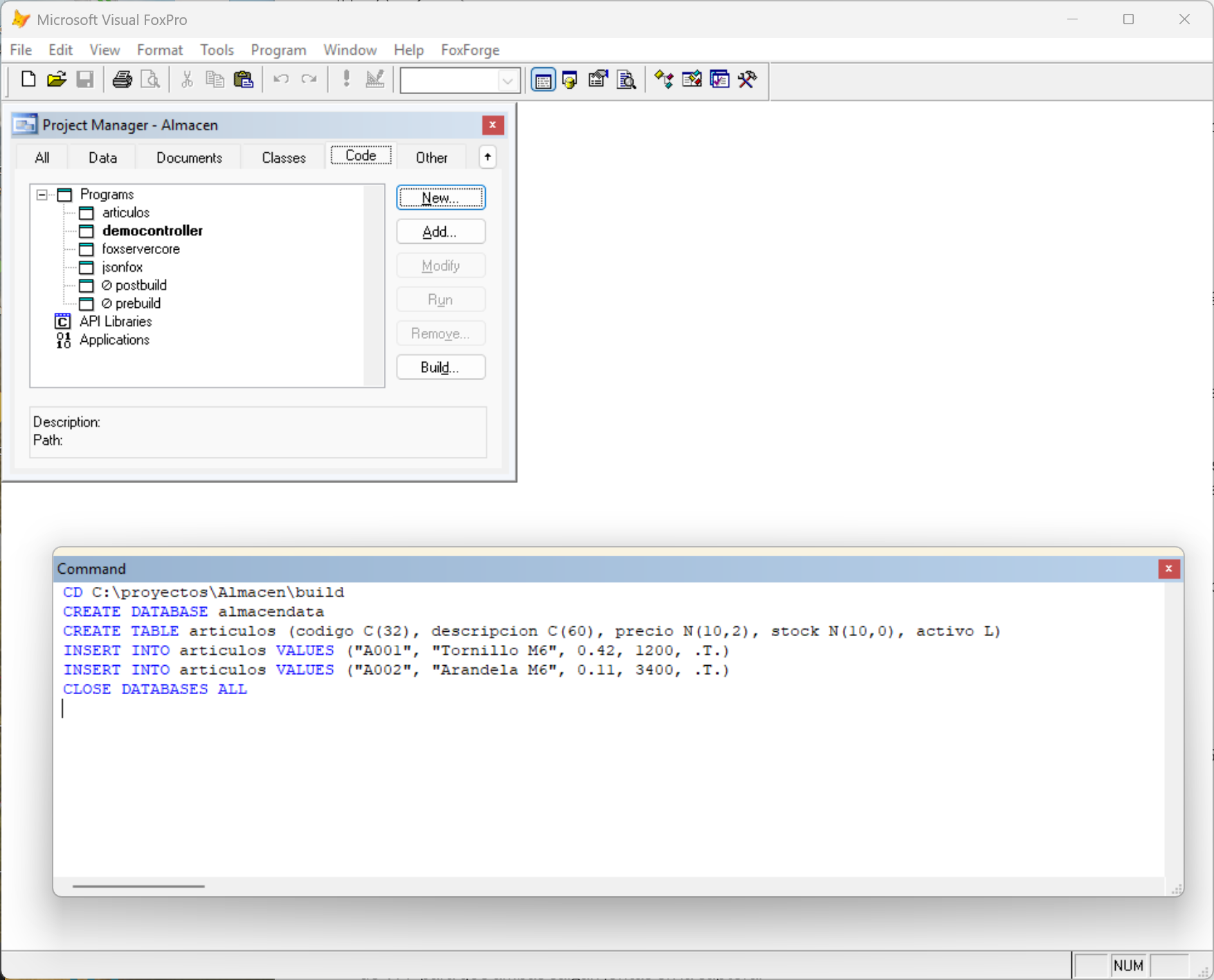
Three details about these lines, and none of them is a whim:
- The table goes in
build\. The server looks for aUSE articuloswith no path in the DLL’s folder. If your table already exists somewhere else, open it with its full path inBeforeEndpoint, or put aSET PATHthere. - It goes inside a database.
descripcionis eleven letters long, and a free table does not accept field names longer than ten. It would answer with error 1712, which talks about duplicate names and says nothing about length. AndcodigoisC(32)because that is the length of the codeNewGuid()generates on inserts. - The
CLOSE DATABASES ALLat the end is mandatory. The IDE opens tables exclusively (SET EXCLUSIVE ONis its default), and while you have the table open here, the server cannot use it. Without that line, in step 9 you will see error 1705. I show it to you there so you recognize it.
Step 7. Compile
You compile as always: with the Build… button in the Project Manager. There is one single detail different from your usual projects, and it is the folder where the DLL is saved. Read it before clicking anything.
- In the
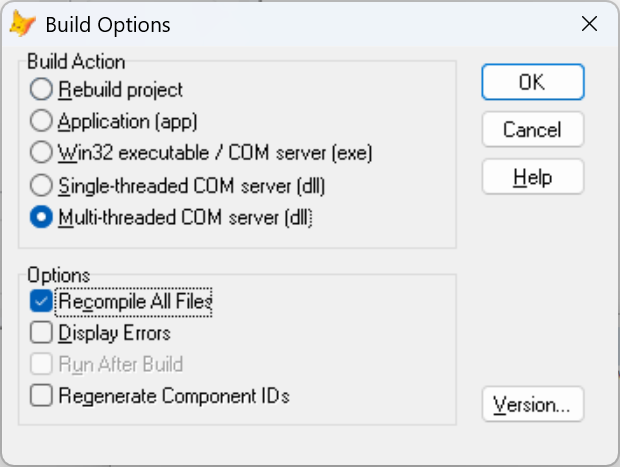
AlmacenProject Manager, click Build…. - In Build Options, select Multi-threaded COM server (dll) and Recompile All Files, and click OK.
- Visual FoxPro asks where to save the DLL and suggests
almacen.dllin the project folder. Do not accept that folder. Double-click thebuildfolder to go into it, keep the namealmacen.dlland click Save.
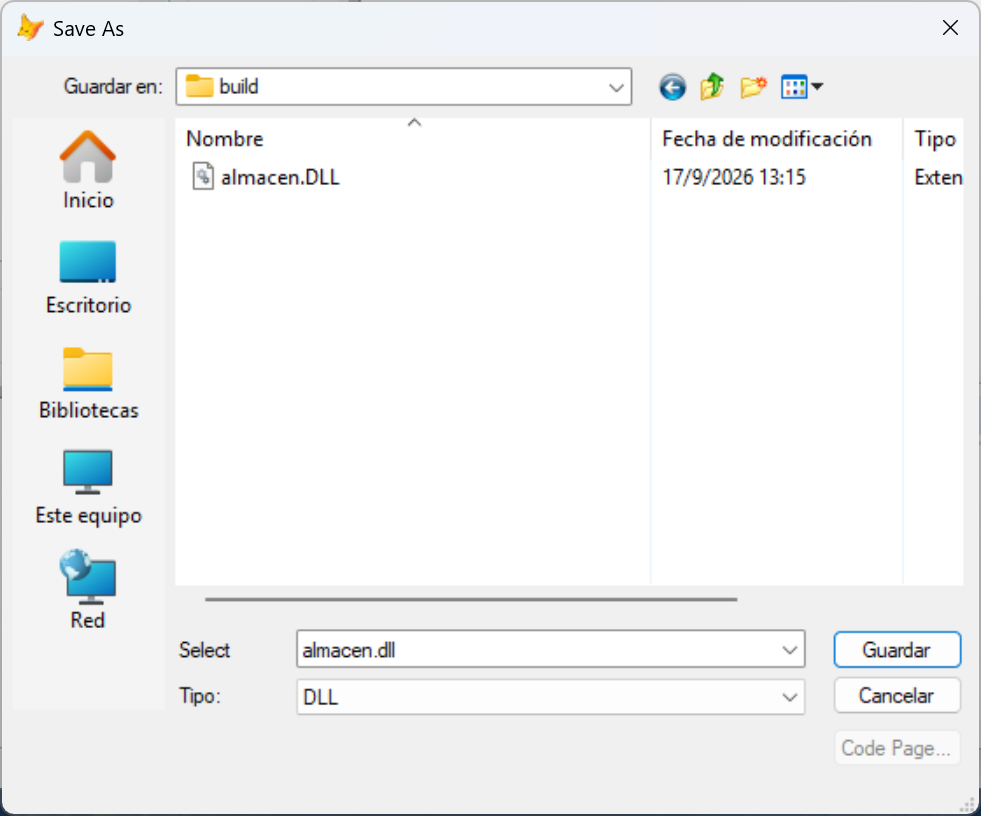
If you save the DLL in the project folder by mistake. Visual FoxPro does not complain: it compiles, and the server starts and loads your three endpoints as if nothing happened. The failure shows up on the first request, with a 500 error that says (the wording is VFP's own, so it comes out in the language of your VFP; mine is Spanish, and it says the file does not exist):
El archivo 'c:\proyectos\almacen\articulos.dbf' no existe.
Why it happens: the server looks for tables in the folder where the DLL is, and the articulos table is in build\. How to fix it: compile again with Build…, this time go into the build folder when saving, and start the server again (step 8). You can delete the DLL left loose in C:\proyectos\Almacen\.
Visual FoxPro does not remember the folder: it will suggest the project folder every time you compile, so this warning holds forever.
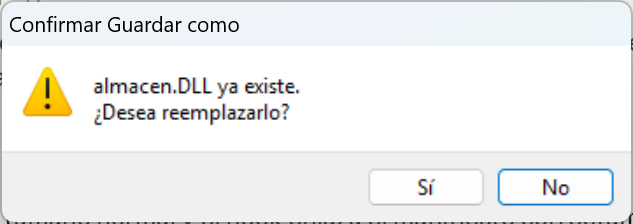
- If you had compiled before, Windows will ask whether you want to replace
almacen.DLL. Answer Yes.
It takes a few seconds. While it compiles, FoxForge reads every HELP clause and records your routes in the server configuration: that is the moment your endpoints start to exist. If no error window appears, it has compiled.
If an error window appears, it is a VFP error in your code, with its file and its line, like in any project. Fix it and compile again. The most common one when pasting: a quote lost in a
HELPclause.
If this window appears when compiling finishes, you opened Visual FoxPro without administrator:
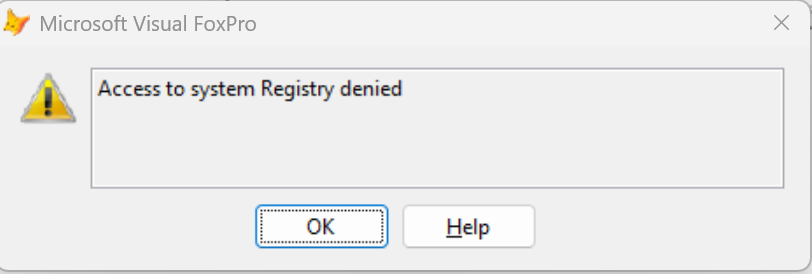
"Access to system Registry denied" means the DLL came out half-made. Visual FoxPro compiles, but at the end it cannot register it in Windows and leaves it incomplete: it weighs about 24 KB instead of more than 200 KB, and the server cannot use it. Click OK, close Visual FoxPro, open it again as administrator (step 1) and compile again.
More convenient: let FoxForge compile for you. With the project open, FoxForge › Current project › Build the DLL into build\, or Ctrl+F7 from anywhere in the IDE. It does the same as the Build… button but without asking anything: it recompiles everything, leaves the DLL in build\ with the project's name and, if the server was running, starts it again. That way there is no folder to get wrong.
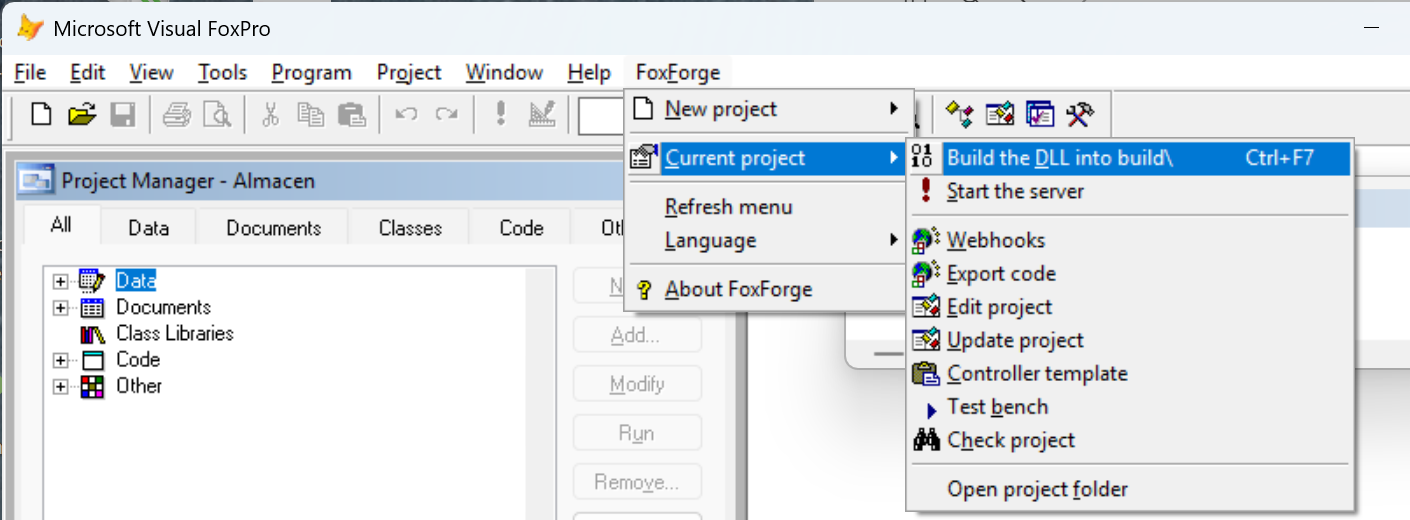
If you do not see those options under Current project, you opened the project after loading FoxForge: click FoxForge › Refresh menu.
Step 8. Start the server
The server is a separate program, FoxServer.Host.exe, that loads your DLL and serves the requests. Start it from the menu: FoxForge › Current project › Start the server (the same image as in step 7). FoxForge knows where FoxServer is installed and where your project’s configuration is.
Prefer the Command Window? This line does the same.
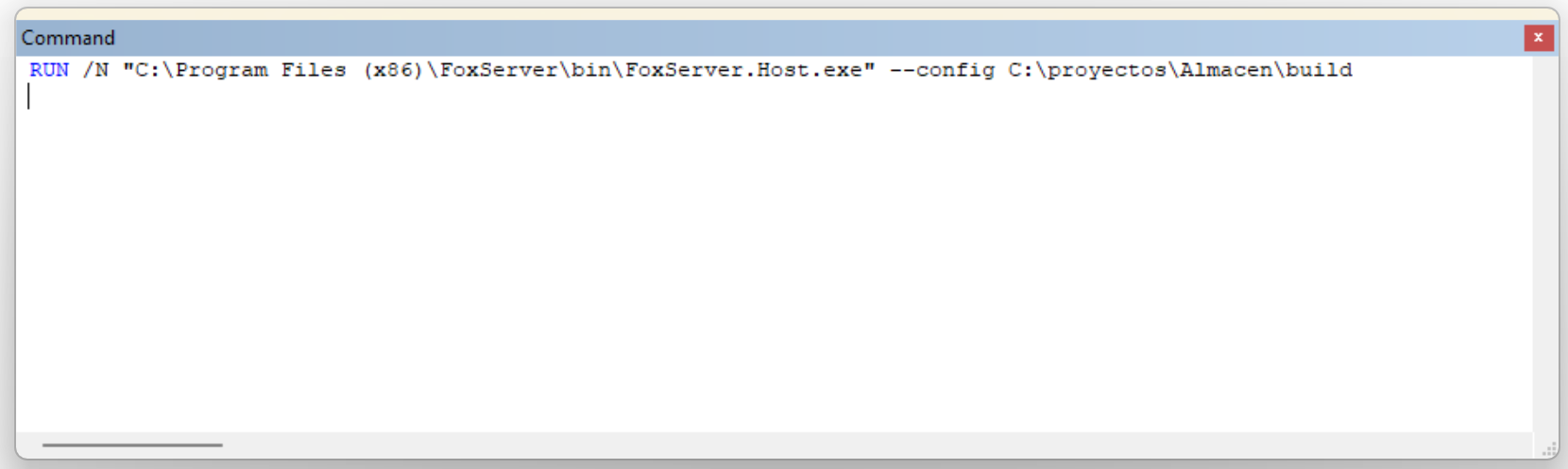
RUN /Nopens a program without waiting for it to finish, and--configtells the server which folder your project’s configuration is in. If you installed FoxServer in another folder, change the first path to thebin\folder of your installation.
RUN /N "C:\Program Files (x86)\FoxServer\bin\FoxServer.Host.exe" --config C:\proyectos\Almacen\buildA black window opens: that is the server. After a couple of seconds it should end with these lines:
Listening: http://127.0.0.1:8099/
  Server : Almacen [api] - C:\proyectos\Almacen\build\almacen.DLL

Press Ctrl+C to stop.
A little higher up you will see your two controllers loaded: DemoController with 7 endpoint(s) loaded and Articulos with 3 endpoint(s) loaded.
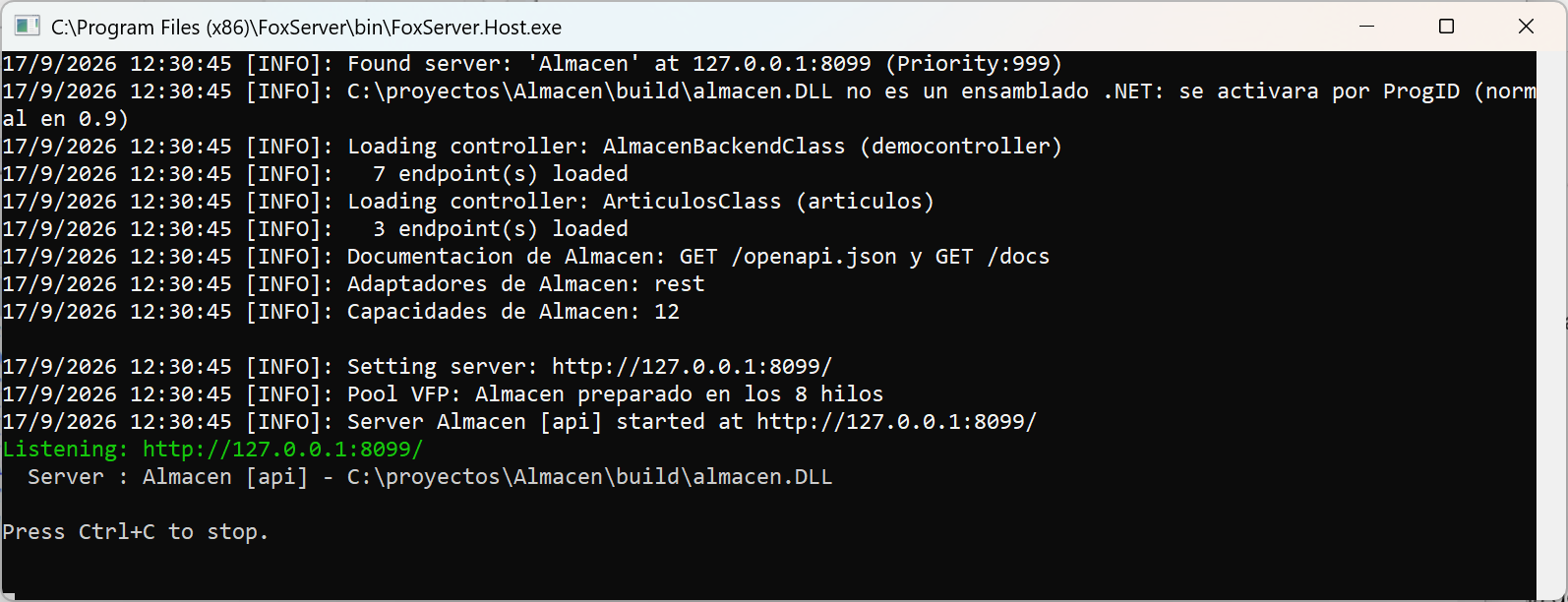
Leave that window open while you test: if you close it, the API goes down. Every request that arrives leaves a few lines there, which is where to look when something does not work. To stop the server, press Ctrl+C in it or close it.
Step 9. Test in the browser
Open your browser and type this address in the bar, as if it were a web page:
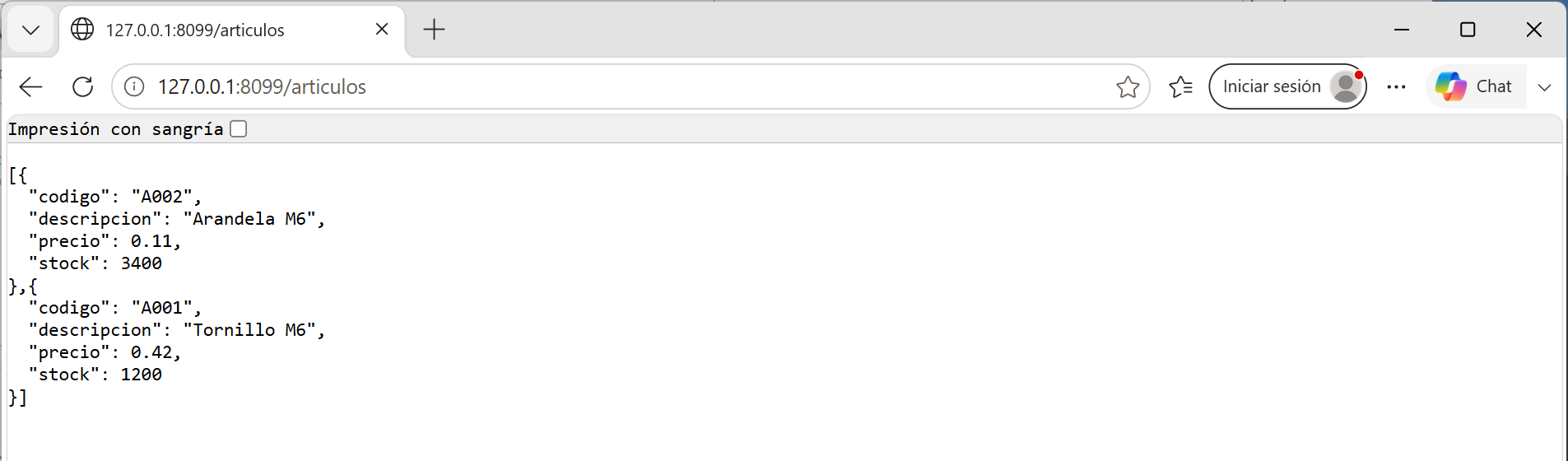
http://127.0.0.1:8099/articulosYou should see your table as JSON, ordered by description, «Arandela» (washer) before «Tornillo» (screw), which is what the query asks for:
[{
  "codigo": "A002",
  "descripcion": "Arandela M6",
  "precio": 0.11,
  "stock": 3400
},{
  "codigo": "A001",
  "descripcion": "Tornillo M6",
  "precio": 0.42,
  "stock": 1200
}]
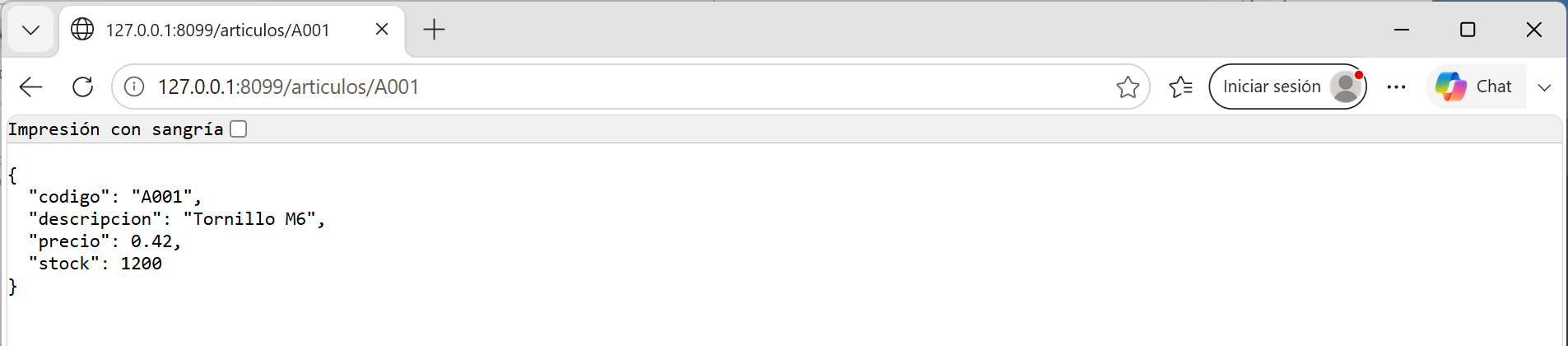
Now a single one, by its code:
http://127.0.0.1:8099/articulos/A001{
"codigo": "A001",
"descripcion": "Tornillo M6",
"precio": 0.42,
"stock": 1200
}
And one that does not exist, to see the NotFound from the code:
http://127.0.0.1:8099/articulos/ZZZZ{
"type": "about:blank",
"title": "Not Found",
"status": 404,
"detail": "No existe el artículo ZZZZ",
"instance": "/articulos/ZZZZ",
"code": "not_found"
}
That format is Problem Details, RFC 9457: the standard way to describe an error in an API, the one the programs that are going to call it already understand. The detail is your message, exactly as you wrote it in THIS.NotFound(...). Successful responses carry no such envelope: they come out the way you saw above.
If instead you see a 500 error with “1705”
{
  "type": "about:blank",
  "title": "Internal Server Error",
  "status": 500,
  "detail": "Internal server error: Error: .beforeendpoint c:\\proyectos\\almacen\\build\\src\\controllers\\articulos.prg Error en la línea 9 Denegado c:\\proyectos\\almacen\\build\\articulos.dbf al acceso al archivo. 1705, Error Code: 1705",
  "instance": "/articulos"
}
It is the table, still open in your Visual FoxPro: you skipped the CLOSE DATABASES ALL from step 6. Type it now in the Command Window and reload the page, without touching the server.
Step 10. Insert an item from Visual FoxPro
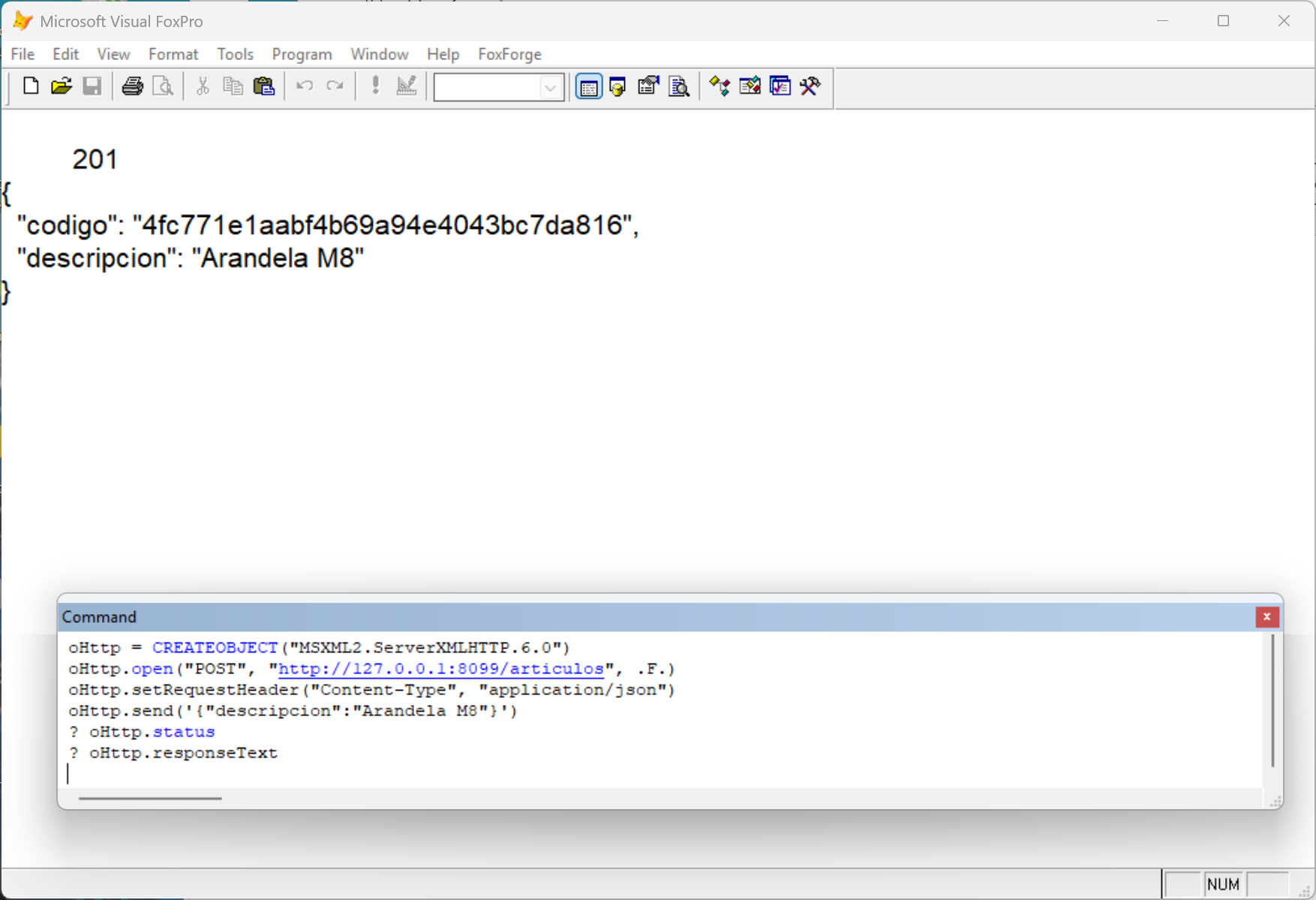
A browser only knows how to ask with GET. To insert you need a POST with the item inside, and we do that from Visual FoxPro itself with Windows’ ServerXMLHTTP object, the same one many of you already use to call web services. Type these lines in the Command Window, one at a time:
oHttp = CREATEOBJECT("MSXML2.ServerXMLHTTP.6.0")
oHttp.Open("POST", "http://127.0.0.1:8099/articulos", .F.)
oHttp.SetRequestHeader("Content-Type", "application/json")
oHttp.Send('{"descripcion":"Arandela M8"}')
? oHttp.Status
? oHttp.ResponseText
On the Visual FoxPro main screen you should get a 201, which means “created”, and the new item with its code:
201
{
  "codigo": "4241c943794c45ccac61dd4af6361c44",
  "descripcion": "Arandela M8"
}
Your code will be different: it is a unique identifier generated on every insert. Go back to the browser, reload http://127.0.0.1:8099/articulos and there it is, with price and stock at zero because we only sent the description.
Step 11. Change something and compile again
This is what your day-to-day will look like: you touch the code, compile and test. There is one detail worth knowing right away.
When you compile, the server stops. The DLL is in use while the server has it loaded, and Windows does not let you overwrite it. FoxForge stops it for you before compiling, and the black window closes by itself.
So the cycle is:
- Change whatever you want in
Articulos.prgand save it. - Press Ctrl+F7 (or FoxForge › Current project › Build the DLL into
build\). It compiles and starts the server again on its own. - Reload the browser.
If you compile with the Build… button, the server does not come back on its own: go into the build folder when saving, answer Yes to replace, and start it again with FoxForge › Current project › Start the server, or with the RUN /N line from step 8 (in the Command Window, go up to it with the arrow key and press Enter).
If you add an endpoint and the browser gives you a 404, you are missing this cycle. Go back to the three things at the beginning: the route does not exist until you compile.
If something does not work
| What you see | What is going on | What to do |
|---|---|---|
| The wizard’s Create button stays gray | A value is missing, or the folder does not exist | Read the box at the bottom of the wizard; if it says the folder does not exist, go back to step 3 |
| When compiling, “Access to system Registry denied” | Visual FoxPro is not open as administrator and the DLL came out half-made | Close it, open it as administrator (step 1) and compile again |
| The server’s black window opens and closes right away | It cannot find the configuration, or there is no DLL | Start it from FoxForge › Current project › Start the server; with RUN /N, check that the --config path is C:\proyectos\Almacen\build. And that step 7 finished without errors |
| The browser says it cannot connect | The server is not running | Check whether the black window is still open; if not, repeat step 8 |
| Current project does not show Build or Start the server | You opened the project after loading FoxForge | FoxForge › Refresh menu |
| 404 on a route you just wrote | You have not compiled since you added it | Step 11 |
500 with «El archivo c:\proyectos\almacen\articulos.dbf no existe» | You saved the DLL in the project folder and not in build\ | Compile with Ctrl+F7, which puts it in its place, or with Build… going into the build folder when saving |
| 500 with 1705 | The table is open in your Visual FoxPro | CLOSE DATABASES ALL in the Command Window |
| 500 with «No se encuentra el alias» | You are using an alias that does not exist in that endpoint | See the note about the alias in step 5 |
| 403 when calling from another machine | It is the license, not your code | See the box below |
One detail for when you want other machines to call you. The project is born listening only on 127.0.0.1, so from outside it does not even connect: that is not the license, it is the configuration (host in build\Almacen.json). Once you change it to your machine’s IP you will see the second thing: if you get a 403 instead of a 200, it is not your endpoint, it is the license. A Developer license only accepts requests from the machine itself. To serve others you need a Runtime license, which is the one installed on the customer’s server. While you develop you do not need it.
What you have done, and what you have not
You have published a table of your application as a REST API with three endpoints, without leaving the IDE, without rewriting the logic, without switching languages and without a framework in between. Everything you have written is VFP.
What you have not done yet is put it into production: HTTPS certificate, the server starting on its own as a Windows service, logs, and how to deploy a new version without taking the server down. That is the next tutorial, because it is where people who already run working systems get stuck most often. In the meantime, the FoxServer documentation covers it piece by piece.
Like the command line? There is this same tutorial in a CLI version, with the same steps turned into commands you can paste and repeat.
If something here does not work as written, write to soporte@irwinrodriguez.dev with what you see on screen. Every output in this article was copied from a real run, and if yours differs I want to know.