Many VFP applications have a PC in a corner with an exe open and a Timer inside: it imports the orders from the web shop, sends the pending emails, runs the closing of every night. It works as long as nobody closes it, nobody logs off and Windows does not restart for an update.
In this tutorial we are going to build pedidos (Spanish for “orders”), a Windows service written in Visual FoxPro that does that work with nobody in front of it. It imports the orders a web shop leaves in a folder, counts the waiting ones every 30 seconds, writes a summary every night and, every morning, sends the pending ones to the warehouse. It starts with the computer, keeps running even if nobody logs in and comes back up by itself if it falls.
Almost all of the code comes with the project: FoxService creates every new service with this importer inside, and it works the first time you run it. We go through it, add a job of our own and install it.
I built it with FoxForge in Spanish, so the screenshots are in Spanish. FoxForge itself speaks your language: I give the menu names and the buttons in English.
What you need
- Visual FoxPro 9 (or 32-bit VFP Advanced 10.2).
- FoxCli installed. It brings FoxForge, the workshop that hooks into the VFP IDE, and FoxService. Without a license it works the same; we see the difference at the end.
- Windows 10 or 11. If you do not have the 32-bit .NET 10 runtime, the FoxCli installer offers to download and install it: the service needs it to start.
Open VFP as usual, without “Run as administrator”. When you build as administrator, VFP registers the component in HKLM, and that registration gets in the way of the following builds. Installing the service does need administrator permission, but Windows asks for it at that moment, with its usual window.
Step 1. Load FoxForge
In the VFP command window:
DO "C:\Program Files (x86)\FoxForge\FoxForge.app"Change the path if you installed FoxForge in another folder. A new menu appears in the VFP menu bar, FoxForge, and everything else is done from there.
Step 2. Create the project
FoxForge > New project > Windows service (FoxService). In the “New Windows service” window only two things are needed:
- Service name:
pedidos. It is also the name of the.exeand of the DLL, and the one you will see in Windows Services. - Folder: your projects folder. I used
C:\a1\tutorial-svc.
Keep the Windows account it comes with, “The system (LocalSystem)”: it can do anything on this computer, like the program with the Timer it replaces. The other two are for when the service has to reach a network folder, and What do I choose? opens the guide, which explains when each one fits. What is in Advanced options… comes with a value that is fine to start with.
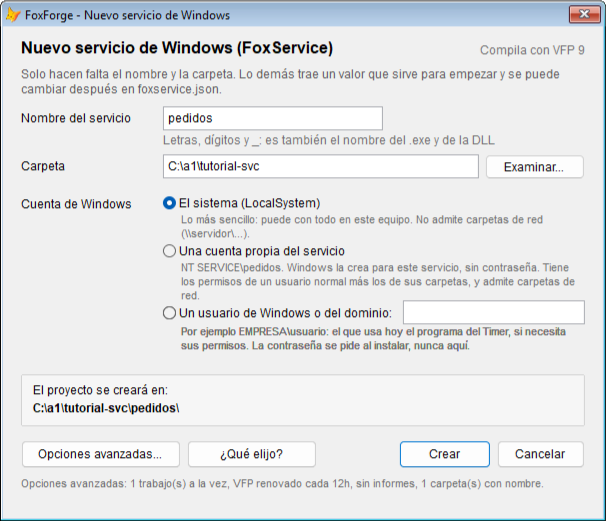
Press Create. FoxForge creates the project, opens it in the Project Manager and greets you with a window that says what a service is and where to start: First steps opens the guide and Open main.prg, the only file you are going to touch.
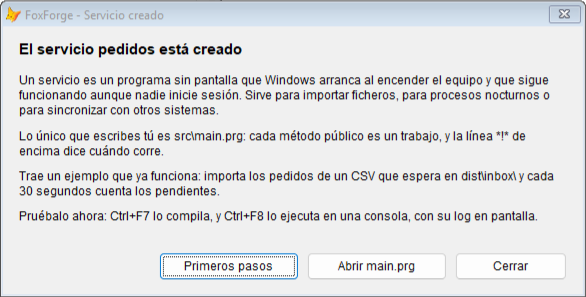
pedidos\
├── pedidos.pjx          the VFP project
├── foxforge.json        the service project mark
├── foxservice.json      the configuration of the service
├── src\
│   ├── main.prg         your jobs: the only thing you edit
│   ├── foxservice.prg   the base class, which belongs to FoxService
│   ├── config.fpw       travels inside the DLL
│   └── orders.frx       the report of the sample
└── dist\                the service comes out here when you build
    ├── data\            the data
    └── inbox\           the folder the sample watches, with a CSV of two orders
Step 3. See it work
Before reading a single line of code, try it. Ctrl+F7 builds (FoxForge > Current project > Build service) and leaves the service in dist\. Without a FoxCli license, the “Service built” notice adds that it comes out in evaluation.
Ctrl+F8 (Run in console) starts it in a console, with its log on the screen, without installing anything:
INFO  job PrepareData: orders.dbf created
INFO  job PrepareData: orders.dbf ready: 0 order(s)
INFO  job ImportOrders: orders_0001.csv: 2 new, 0 repeated
INFO  job CountPending: Pending orders: 2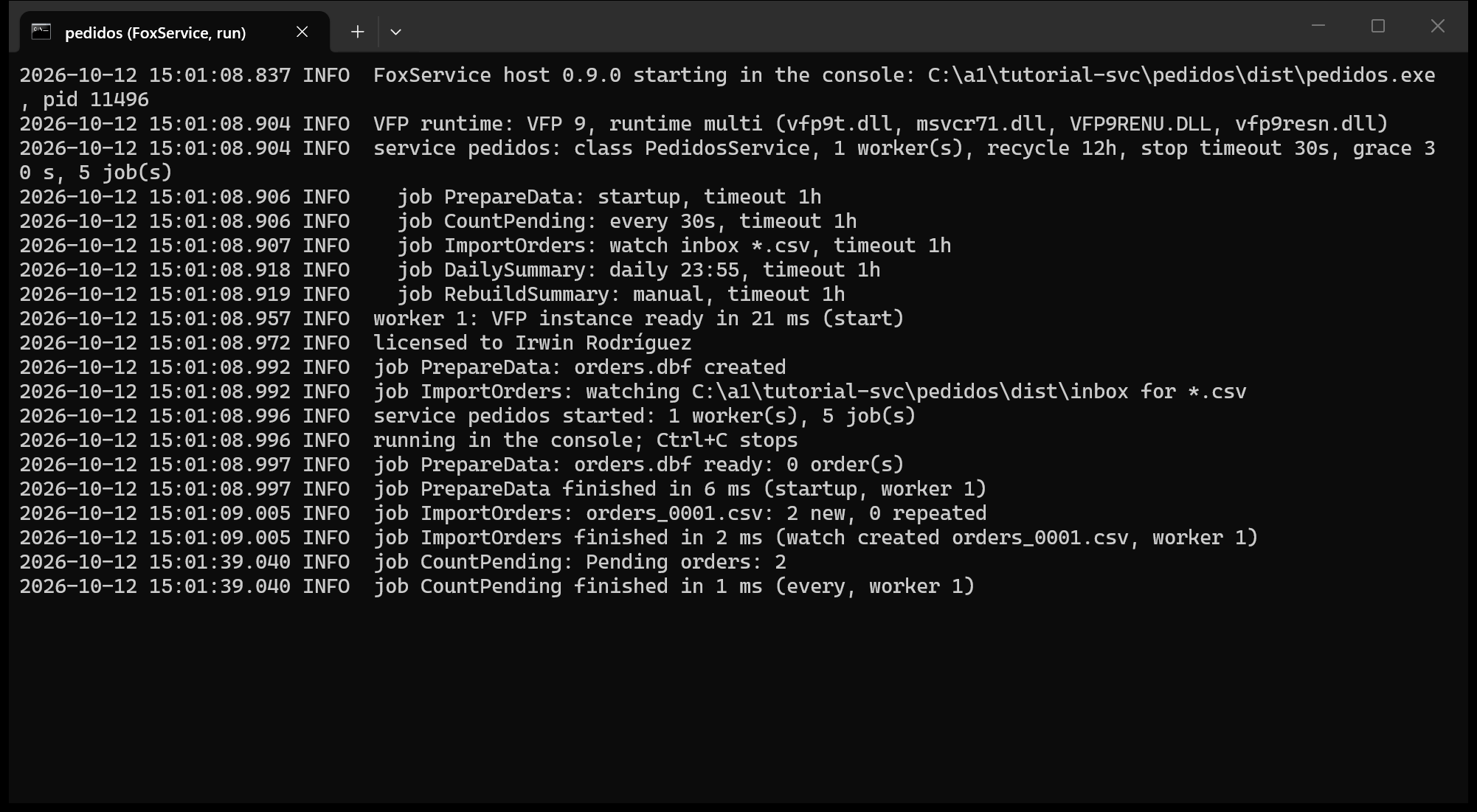
The service has created the table orders.dbf, imported the CSV that was waiting in inbox\ and moved it to inbox\processed\. After 30 seconds it counts the pending orders, and then every 30 seconds again. Ctrl+C stops it.
Step 4. What main.prg brings
Open src\main.prg. Below a long comment that explains the annotations is the class; without the body of the methods, it is this:
DEFINE CLASS PedidosService AS FoxServiceBase OF foxservice.prg OLEPUBLIC

    *!* @startup
    PROCEDURE PrepareData                     && at startup: the table, if it does not exist

    *!* @every 30s
    PROCEDURE CountPending                    && every 30 seconds: the pending ones

    *!* @watch inbox *.csv
    PROCEDURE ImportOrders(tcPath, tcChange)  && every CSV that arrives in inbox\

    *!* @daily 23:55
    PROCEDURE DailySummary                    && every night: the summary of the day

    PROCEDURE RebuildSummary                  && no *!* line: only when you run it

    PROTECTED PROCEDURE OpenOrders            && helper: opens the table and selects it
    PROTECTED PROCEDURE WriteSummary          && helper: what both summaries do

ENDDEFINE
That is enough to see how it all works:
- Every public method of the class is a job, and the
*!*line above it says when it runs: every so often (@every), at a time of day (@daily), at startup (@startup) or when a file arrives in a folder (@watch). Without a*!*line, the job does not run by itself: you run it. - What is not a job goes
PROTECTED PROCEDURE.OpenOrdersopens the table, creates it with its index the first time and leaves it selected; every job starts with it, so it does not matter which one runs first. - Paths come from
THIS.Path("data"), thedatafolder offoxservice.json, and never fromSET DEFAULT: the current folder belongs to the whole process. THIS.Log()writes to the log of the service, the same one you saw in the console.- There is no
TRY ... CATCH. A VFP error reaches the log by itself, with its number and its line, the job counts as failed and the service goes on.
The First steps of the guide (FoxForge > Help > FoxService guide) go through the code of each job line by line: why the CSV goes through STRCONV(), why the date goes with EVALUATE("{^...}") and how the SEEK avoids importing the same order twice.
Step 5. Try it by hand
With the service in the console again (Ctrl+F8), copy the CSV from dist\inbox\processed\ to dist\inbox\. The log says:
INFO job ImportOrders: orders_0001_20261012143307.csv: 0 new, 2 repeatedThe job is idempotent: both orders were already in, and the SEEK by id skips them. The file goes back to processed\, with the time in its name so as not to overwrite the previous one.
The summary runs at 23:55, but there is no need to wait. FoxForge > Current project > Run a job now… shows the jobs with when each one runs, the manual ones first:
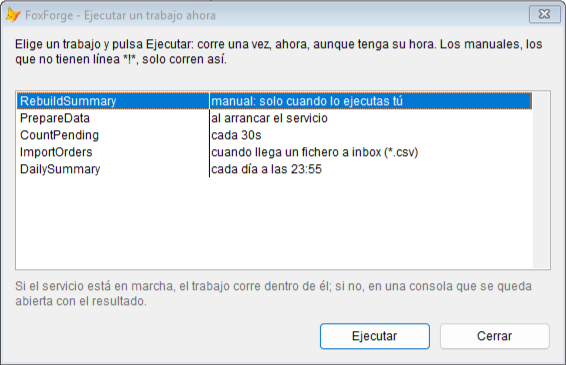
Pick RebuildSummary and press Run. If the service is running, the job runs inside it; if not, in a console that stays open with the result. summary_20261012.txt appears in dist\data\:
Orders: 2, total: 173.40And if something fails and you want to look inside, Current project > Test bench… runs a job from the source, without building, with the VFP debugger at hand: a SET STEP ON works.
Step 6. Add a job: the warehouse
Now one of our own. Every morning, the warehouse wants a CSV with the pending orders, and those orders have to be marked as sent so they are not sent again. Add this method to the class, below RebuildSummary:
    *-- Every morning: the pending orders, to a CSV for the warehouse,
    *-- and marked as sent.
    *!* @daily 07:00
    PROCEDURE SendToWarehouse
        LOCAL lnPending, lcFile
        THIS.OpenOrders()
        COUNT FOR status == "P" TO lnPending
        IF lnPending = 0
            THIS.Log("Nothing to send to the warehouse")
            RETURN
        ENDIF
        lcFile = THIS.Path("data") + "warehouse_" + TTOC(DATETIME(), 1) + ".csv"
        COPY TO (lcFile) FIELDS id, customer, amount FOR status == "P" TYPE CSV
        REPLACE ALL status WITH "S" FOR status == "P"
        THIS.Log(TRANSFORM(lnPending) + " order(s) sent to the warehouse: " + lcFile)
    ENDPROC
@daily 07:00is in 24-hour format, at the time of the computer the service runs on. A@daily 7:00 AMdoes not reach the server: Ctrl+F7 stops the build and shows the line,main.prg(134): error: @daily needs a local time HH:MM from 00:00 to 23:59.- It starts with
OpenOrders(), like the others: the table open and selected, soCOUNTandREPLACEwork on it. - The time goes in the file name (
TTOC(DATETIME(), 1)) becauseCOPY TOoverwrites without asking, even withSET SAFETY ON. With the date alone, a second run on the same day would overwrite the morning file. COPY TO ... TYPE CSVwrites in Windows-1252, like the table: “Ferretería” comes out with its accent.
Ctrl+F7, and without waiting until seven: Run a job now… > SendToWarehouse. The log says:
INFO job SendToWarehouse: 2 order(s) sent to the warehouse: C:\a1\tutorial-svc\pedidos\dist\data\warehouse_20261012143501.csvid,customer,amount
1001,"Ferretería Ruiz",125.40
1002,"Bar Manolo",48.00Run it again: “Nothing to send to the warehouse”. Both orders are already marked, and the pending counter will say 0 on its next turn.
Step 7. Install it as a Windows service
FoxForge > Current project > Windows service… shows the state of the service and the buttons to handle it. Press Install: Windows asks for administrator permission, and the service is installed and running. From now on it starts by itself when the computer starts, even if nobody logs in, and Windows starts it again if it falls.
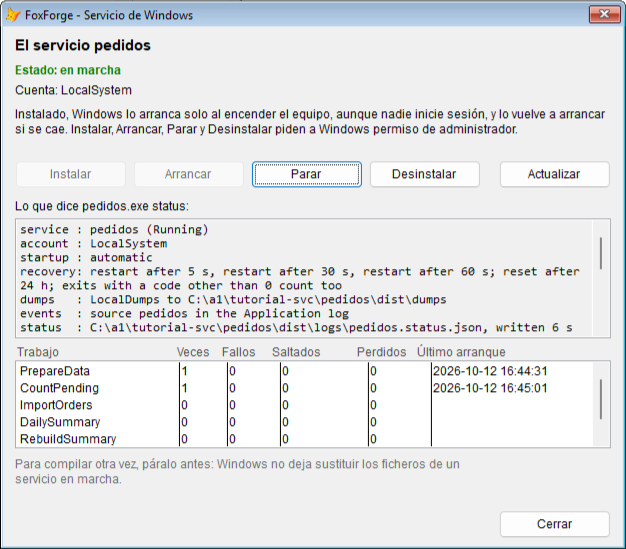
Below the buttons, the window shows what status says (the account, the automatic start, what Windows does if it falls) and, further down, one row per job: how many times it has run, failed or been skipped, and when it last started. Copy a CSV to dist\inbox\ and see it in the log, without a console now: it is in dist\logs\pedidos_20261012.log, one per day.
To build again, stop it first with Stop: Windows does not let the files of a running service be replaced, and if you forget, Ctrl+F7 reminds you. Build, and Start.
Step 8. Take it to a server
The dist\ folder carries everything the service needs, the VFP runtime included. The server needs neither Visual FoxPro nor a license; only Windows with the 32-bit .NET 10 runtime. Copy the whole dist\ to a local disk of the server and, in an administrator console in that folder:
pedidos.exe install --startIt installs it with the account of foxservice.json (the system one, the one you chose when you created it) and starts it. pedidos.exe status says how it is, and pedidos.exe uninstall removes it, keeping the logs. If on the server the service has to reach a network folder, the guide explains which account to use.
Step 9. The license
Without a license, the service works the same: every job runs, without limits and without an expiry date. The only thing that changes is that it says so once when it starts, with a line in its log and an entry in the Event Log:
WARN Built with FoxCli (evaluation): this service runs every job, without limits. A FoxCli license seals it: https://irwinrodriguez.dev/foxcliWith a FoxCli license loaded in FoxForge > FoxCli license…, Ctrl+F7 seals the service with your name: that line disappears, and the log and status say who it is licensed to. The license belongs to the programmer who builds: the servers where you install your services need none.
What next
- The FoxService guide is in FoxForge > Help > FoxService guide: what can live in a job and what cannot, timeouts and quarantine, the Windows accounts,
@watchin depth, PDF reports and VFP Advanced. - With an agent: FoxStack gives Claude the
foxservicecommands as tools, to create, build and install services from a conversation. - Ideas to keep going with
pedidos: haveSendToWarehouseemail the CSV instead of leaving it indata\, or a second@watchfor a returns folder.